DFG Agents Only
Enter your access code to view this page.
Incorrect PIN — try again.
Duse Financial Group · Agents Only
Enter your access code to view this page.
 Aetna Senior Supplemental
Accendo Final Expense (Preferred / Standard / Modified) · 28 steps · 1 e-sign script
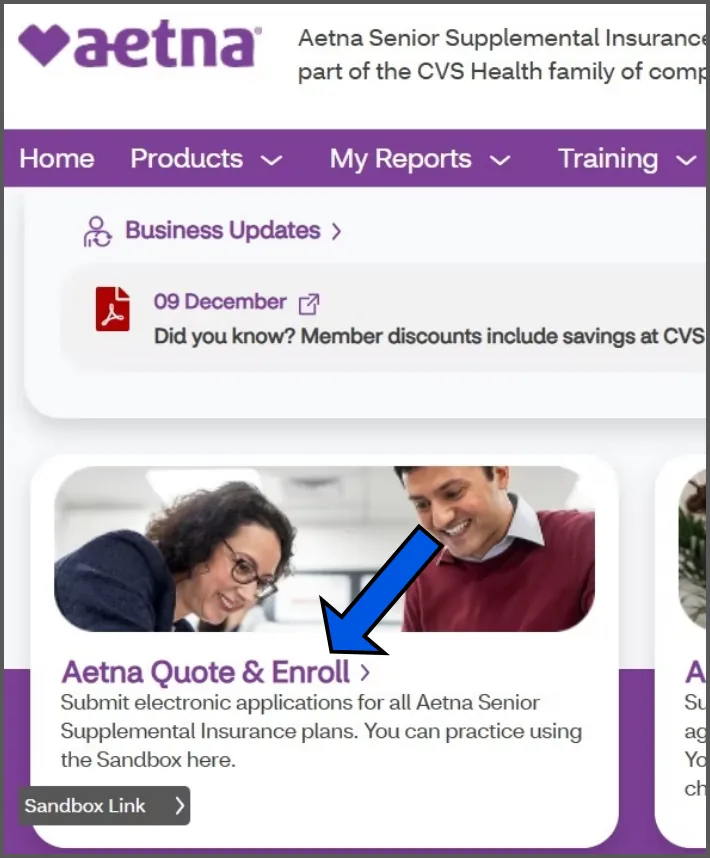
After logging into your dashboard, click on QUOTE & ENROLL.
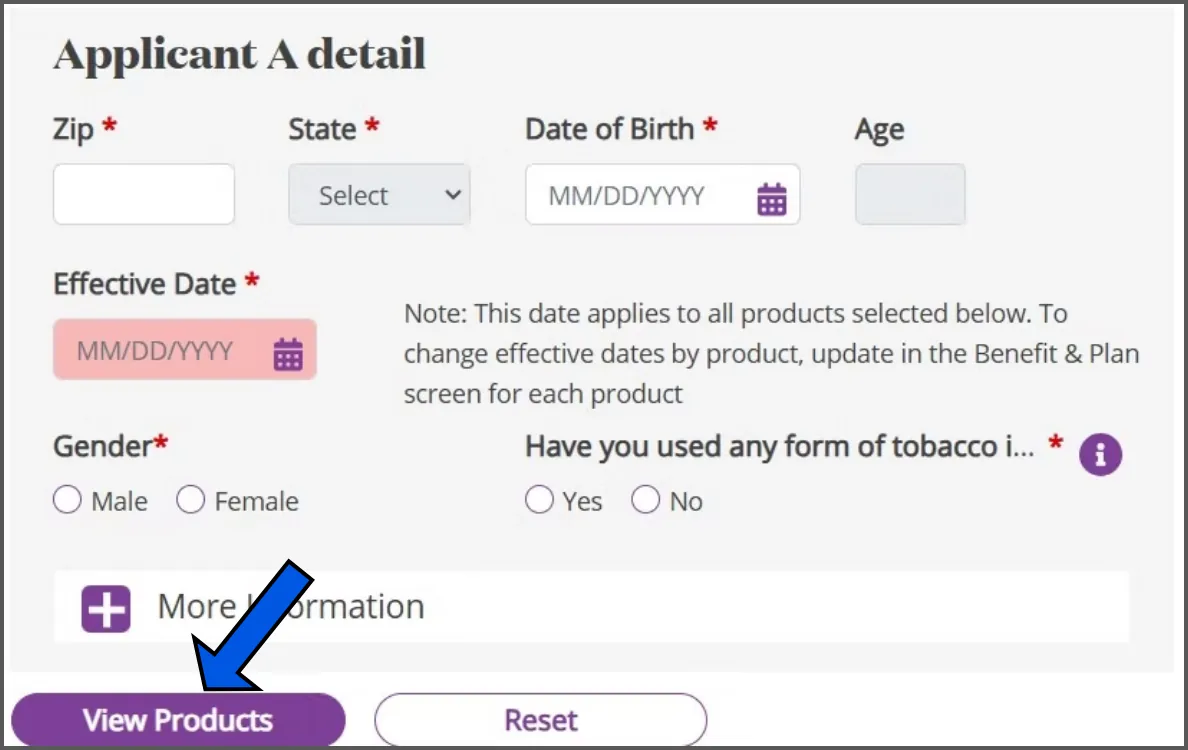
Fill in all the general information.
EFFECTIVE DATE will need to be entered but may be changed later in the application. A way to ask this question would be “Now [Client’s Name], if approved for coverage, would you want your coverage to begin immediately just in case?”
Click on VIEW PRODUCTS
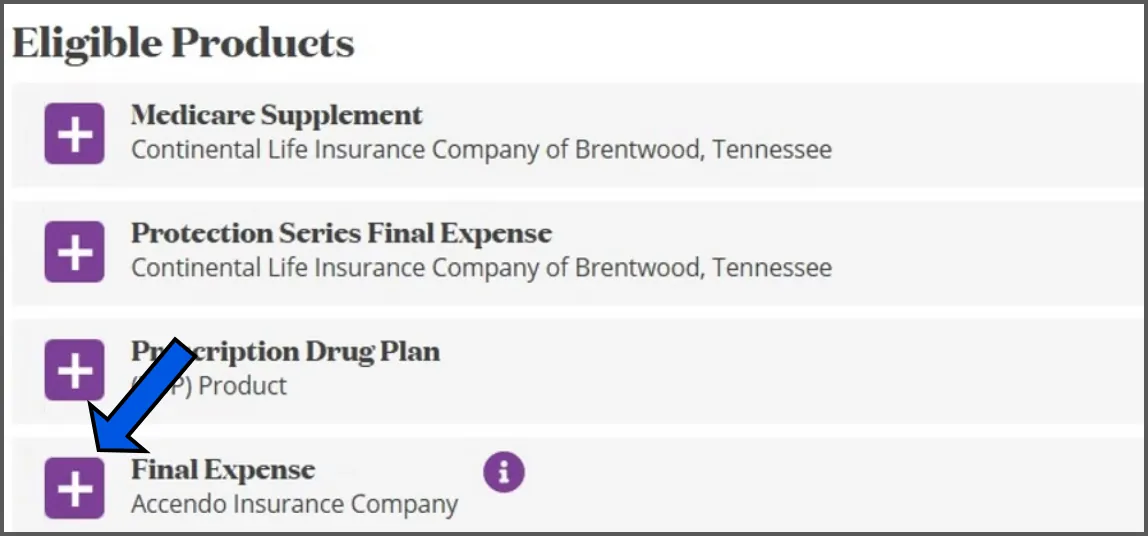
Click on the box next to FINAL EXPENSE.
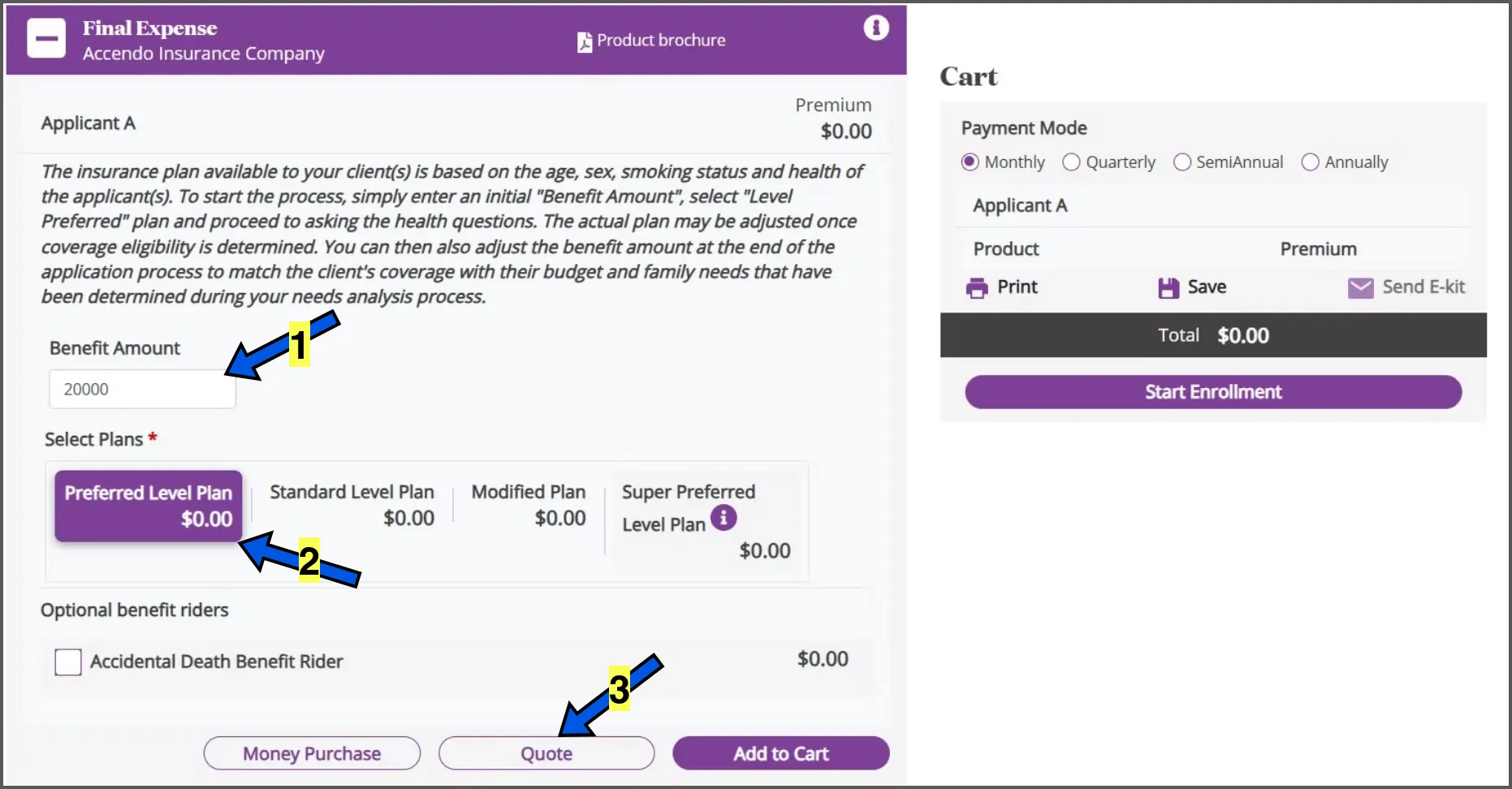
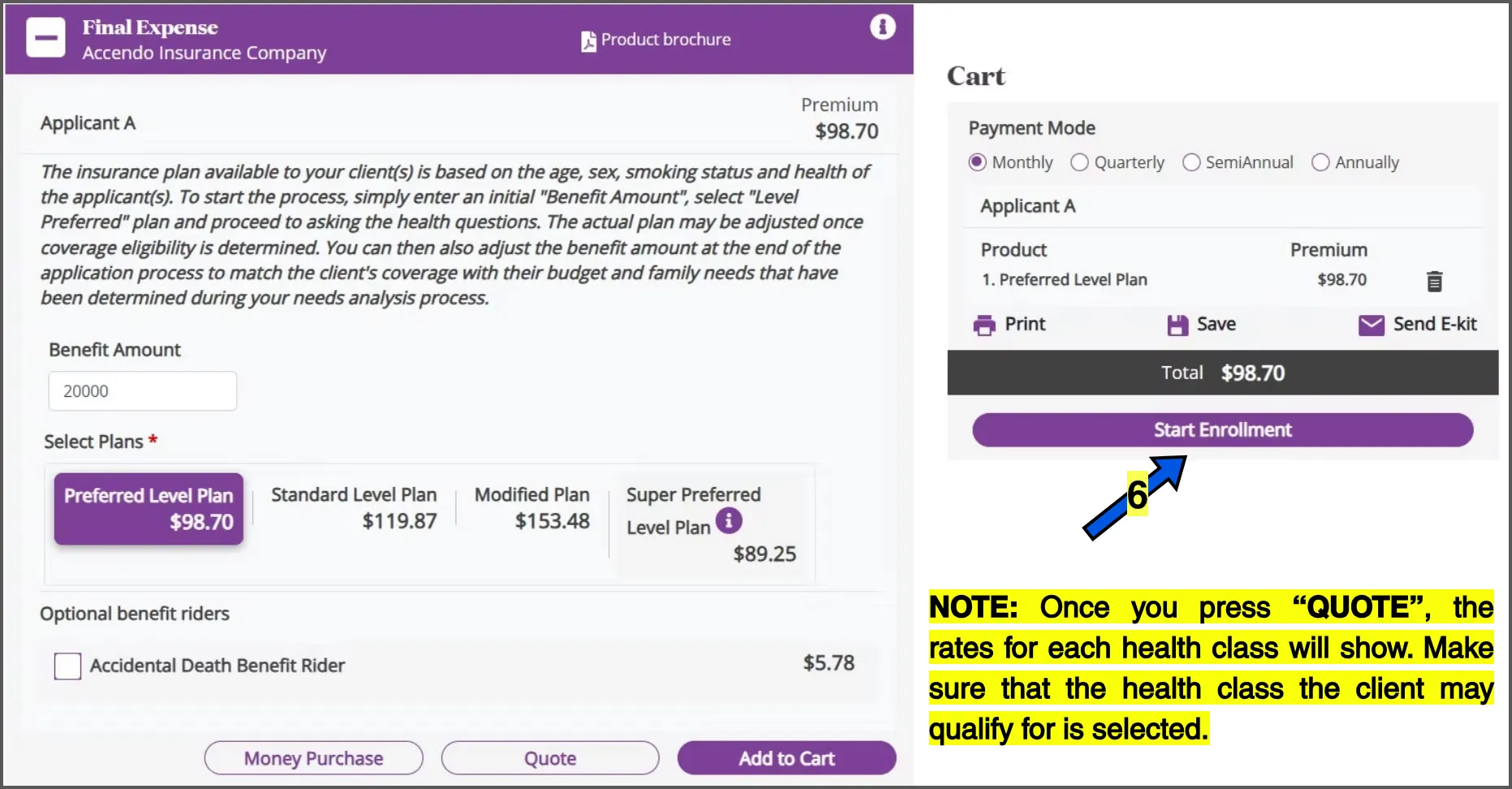
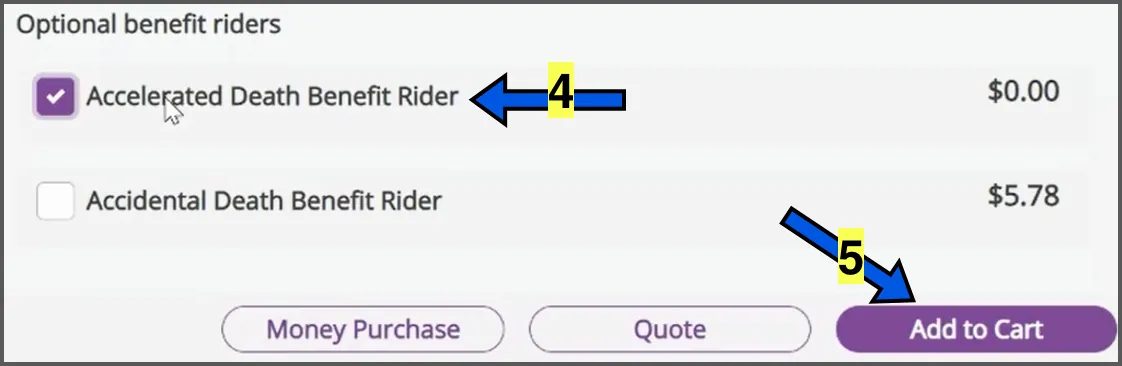
Accidental Death Benefit Rider. Every policy already covers death due to an accident. However, the accidental death benefit rider doubles the coverage amount in case of an accidental death. For example, if a client has $20,000 in base coverage and they pass away of natural causes, their beneficiary will receive $20,000. If they pass due to an accidental death, the beneficiary will receive $40,000.
You can offer this to your client by saying “Now [Client’s Name], for just [$] more, you may add double accidental to your policy. This means if you pass away of natural causes, [Beneficiary Name] will get [Base Coverage Amount]. However, if you pass away due to an accidental death, [Beneficiary’s Name] will receive [Double Coverage Amount]. Would you like to add this rider to your policy?”
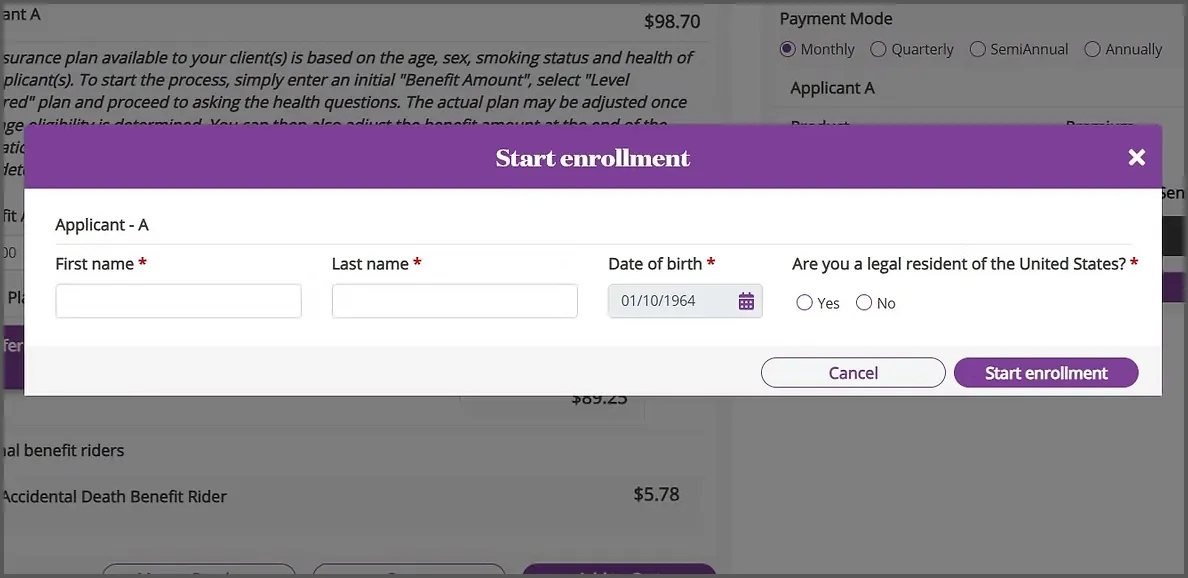
Fill in the client's first and last name, confirm the date of birth is correct, select citizenship, and then click on the START ENROLLMENT button.
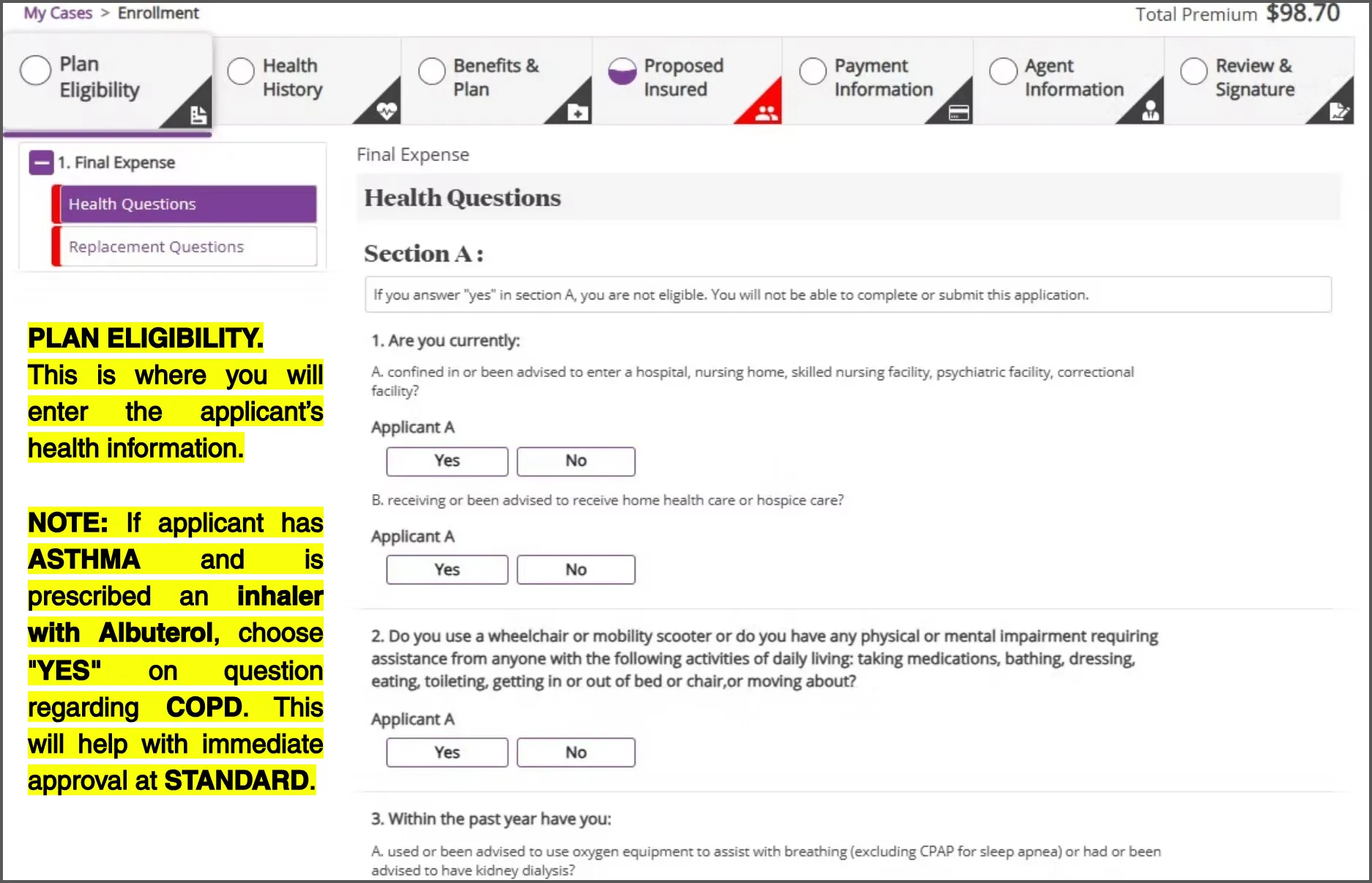
This is where you will enter the applicant’s health information.
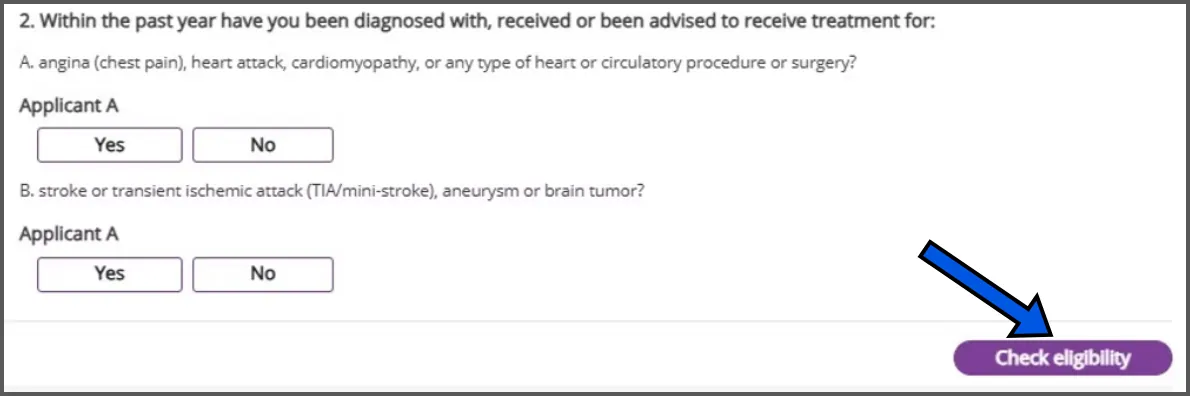

Once all health questions have been answered, click on the CHECK ELIGIBILITY button.
After clicking on “Check Eligibility”, it will let you know which plan the applicant may qualify for based on their answers.
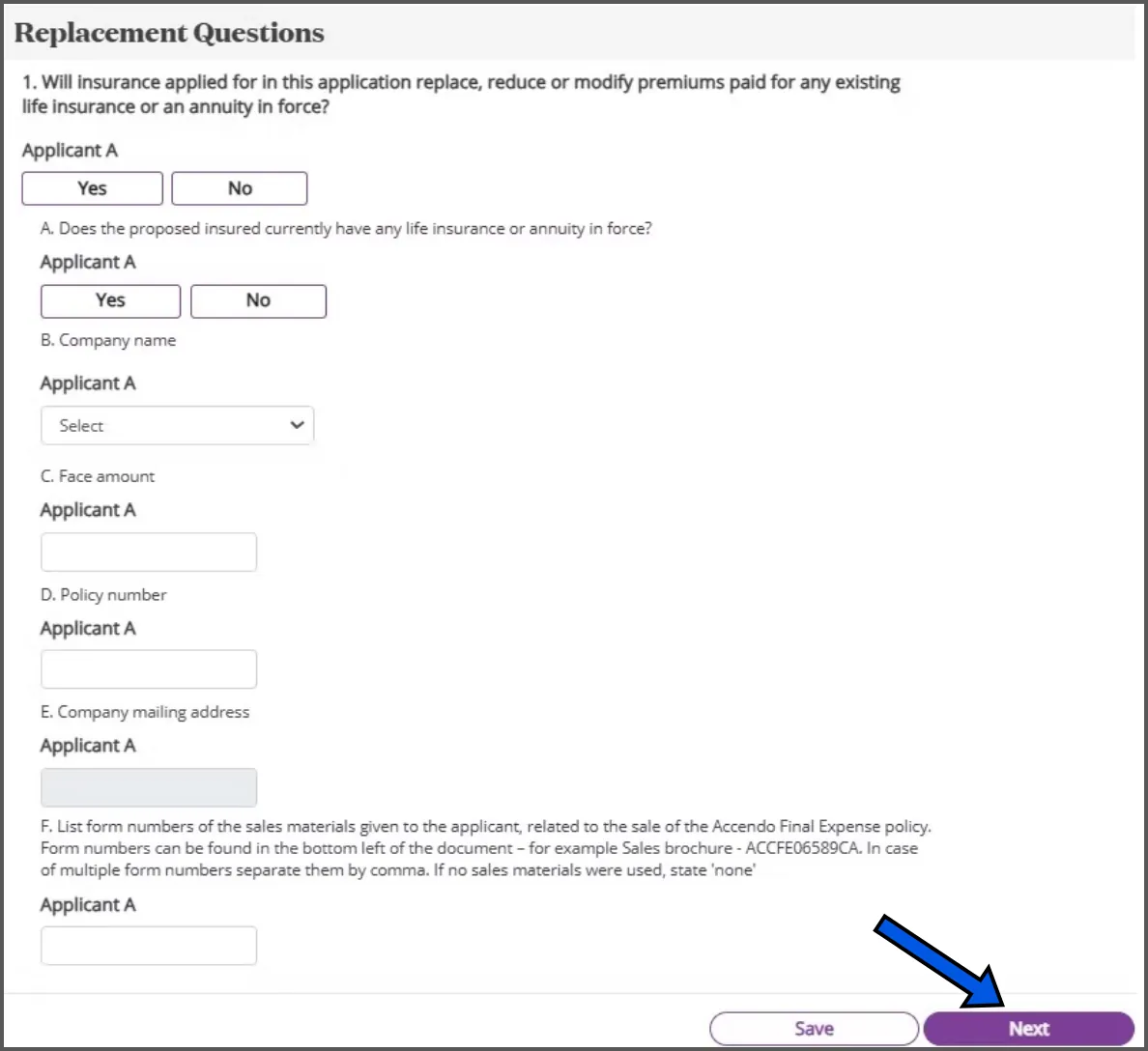
You will be asked about any existing policies the applicant may already have.
If applicant has no existing coverage, select NO on 1 and 1A.
If Yes on 1 and 1A, enter information of existing policies. Some information may not be mandatory. If policy number of existing policy is unknown, type in “Unknown” in part “D Policy Number” box.
Leave box 1F empty.
Click NEXT
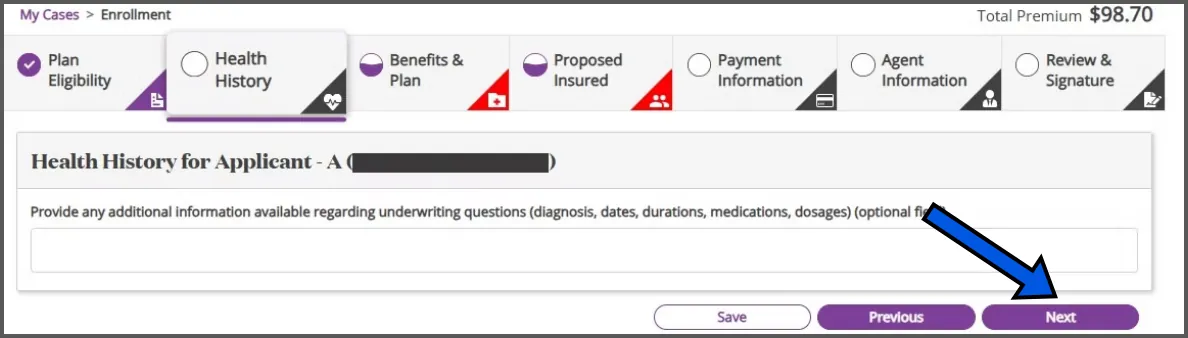
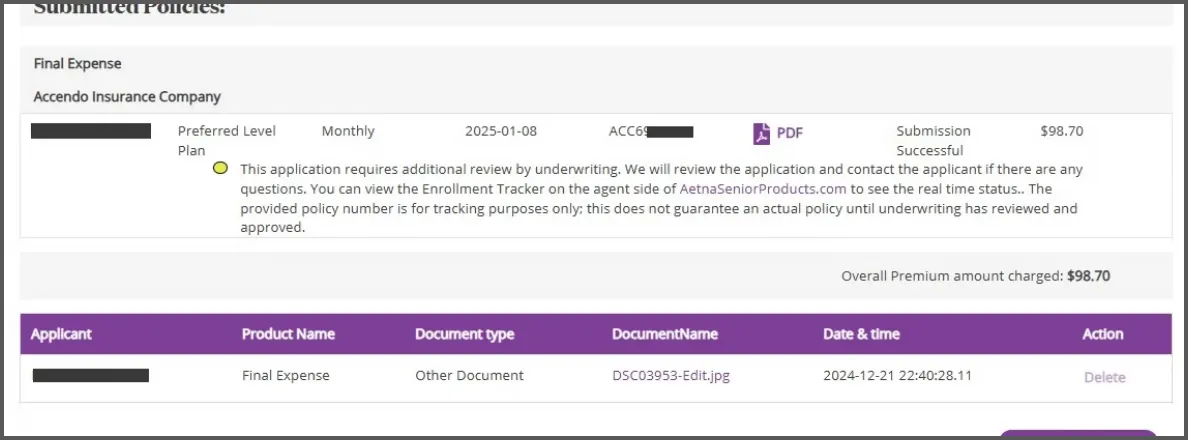
HEALTH HISTORY SECTION. You may leave this field empty. Entering information in this box will send the application to underwriting and instant decision will not be available.
Click NEXT
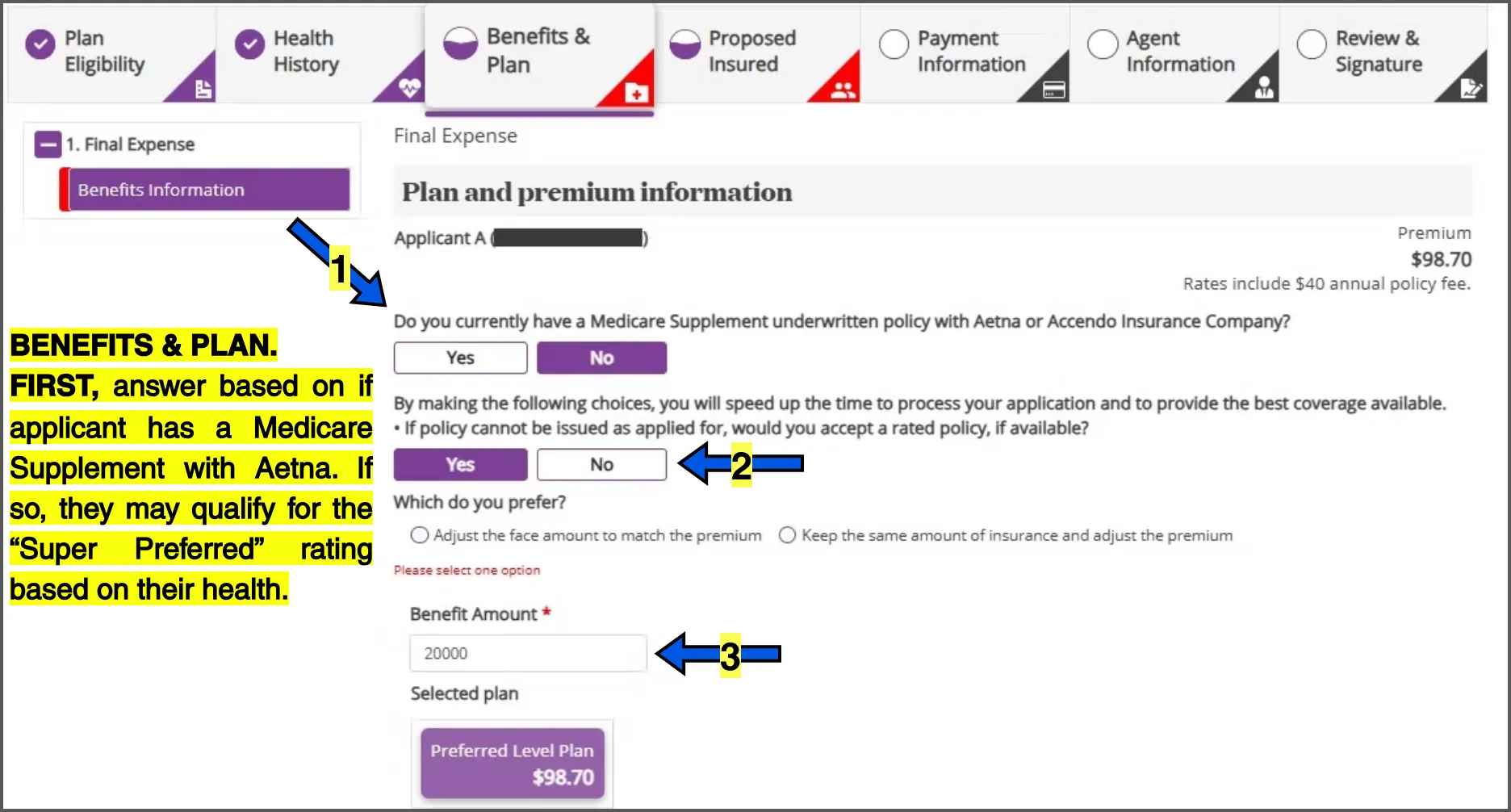
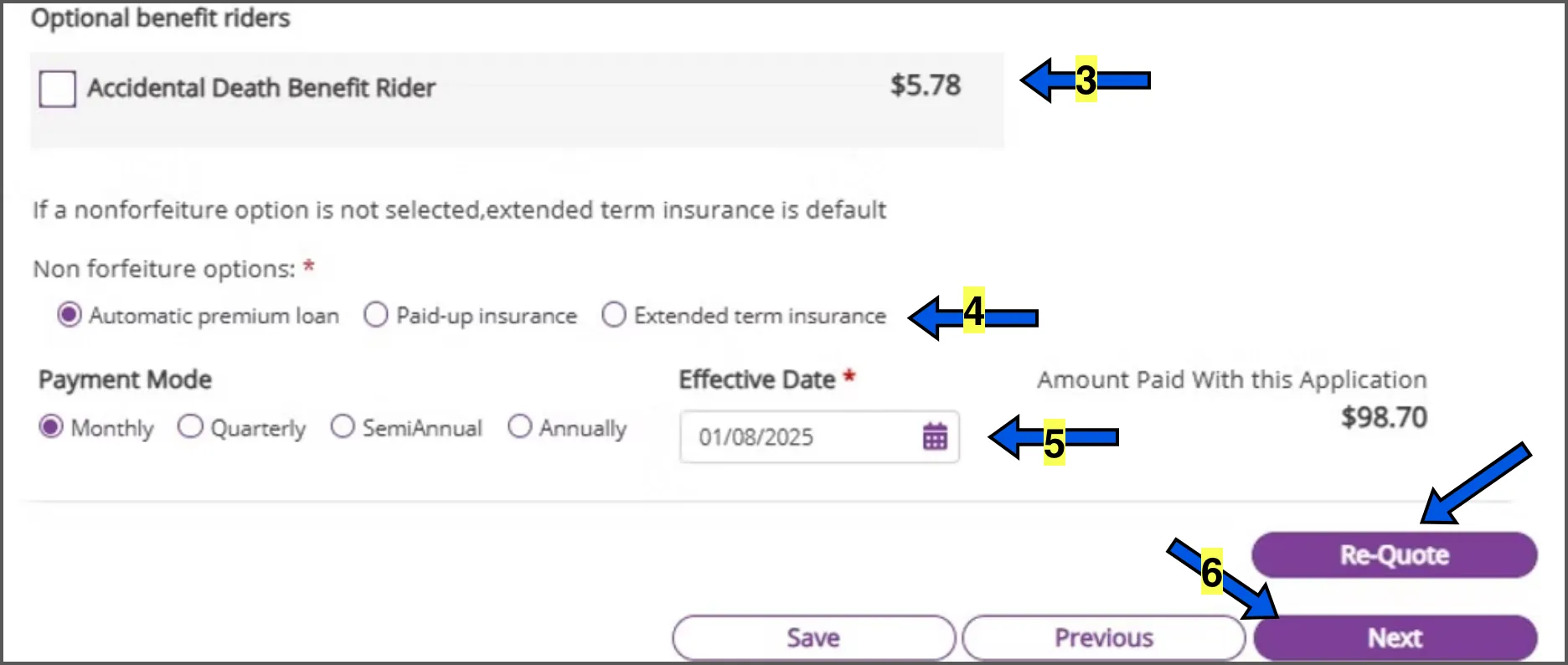
Automatic Premium Loan: This allows the insurer to automatically withdraw funds from the policy's cash value to pay an overdue premium if the policyholder fails to make a payment on time, essentially preventing the policy from lapsing and maintaining coverage without the policyholder needing to take action; this loan is then added to the policy's outstanding loan balance with interest charges applied. If the insured passes away without repaying the loan, their beneficiary will receive the coverage amount minus any outstanding loan amounts.
Paid-up Insurance: Based on the cash accumulation at the time, the insured can choose to accept a decreased paid-up amount of coverage which no longer requires premium payments to maintain coverage. The policy remains in effect until the insured dies, or the policy is canceled.
Extended Term Insurance: Extended term insurance allows a policyholder to keep their policy active as term life coverage for a set period. The policyholder uses the cash value of their policy to purchase a term policy with the same death benefit. This is used if a policyholder fails to pay their premium within the grace period. The cash value is used to extend the term of coverage based on the benefit amount at the due date of the earliest unpaid premium.
If any changes to coverage or riders, click on RE-QUOTE
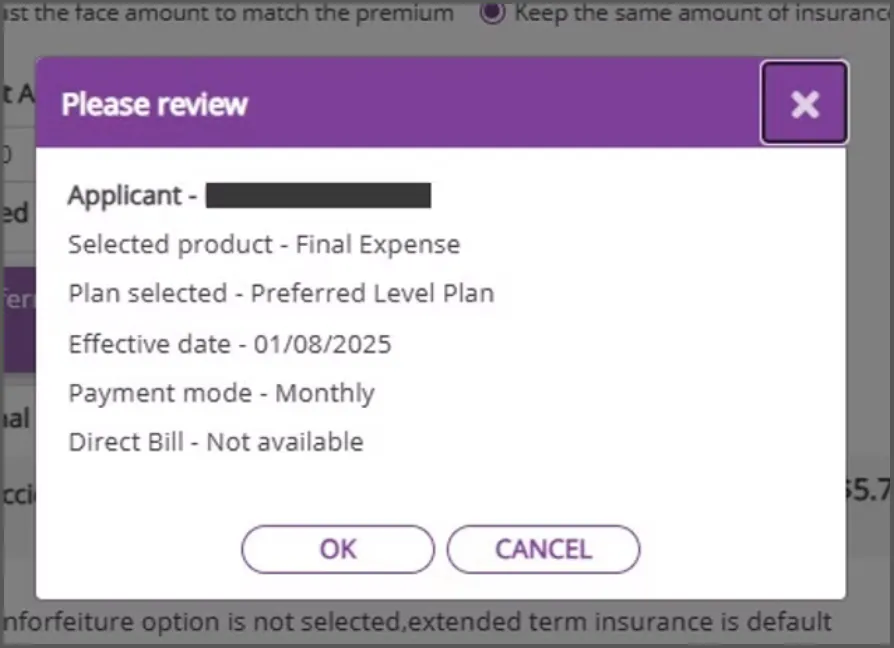
Confirm details and then click OK
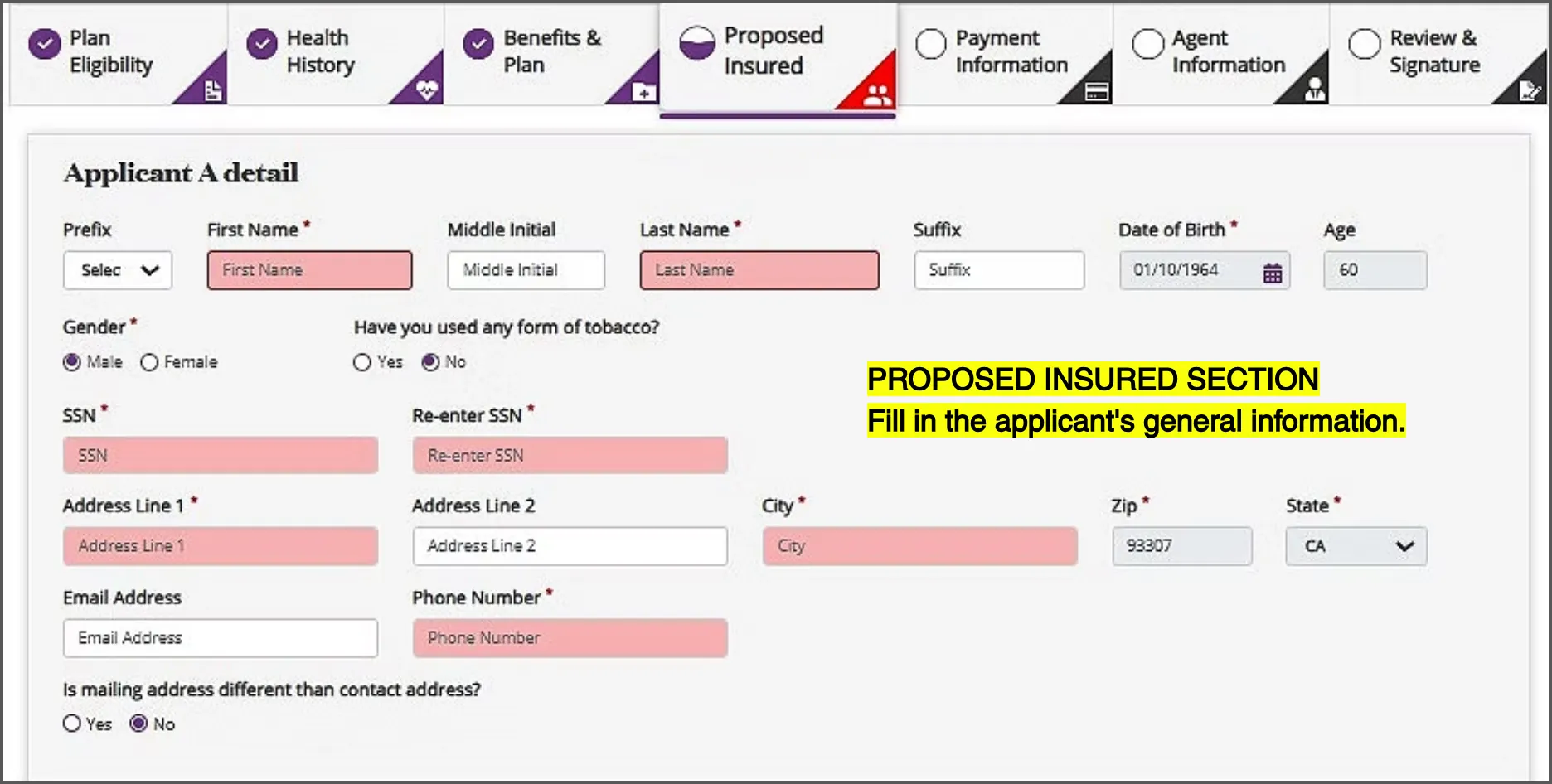
PROPOSED INSURED SECTION Fill in the applicant's general information.
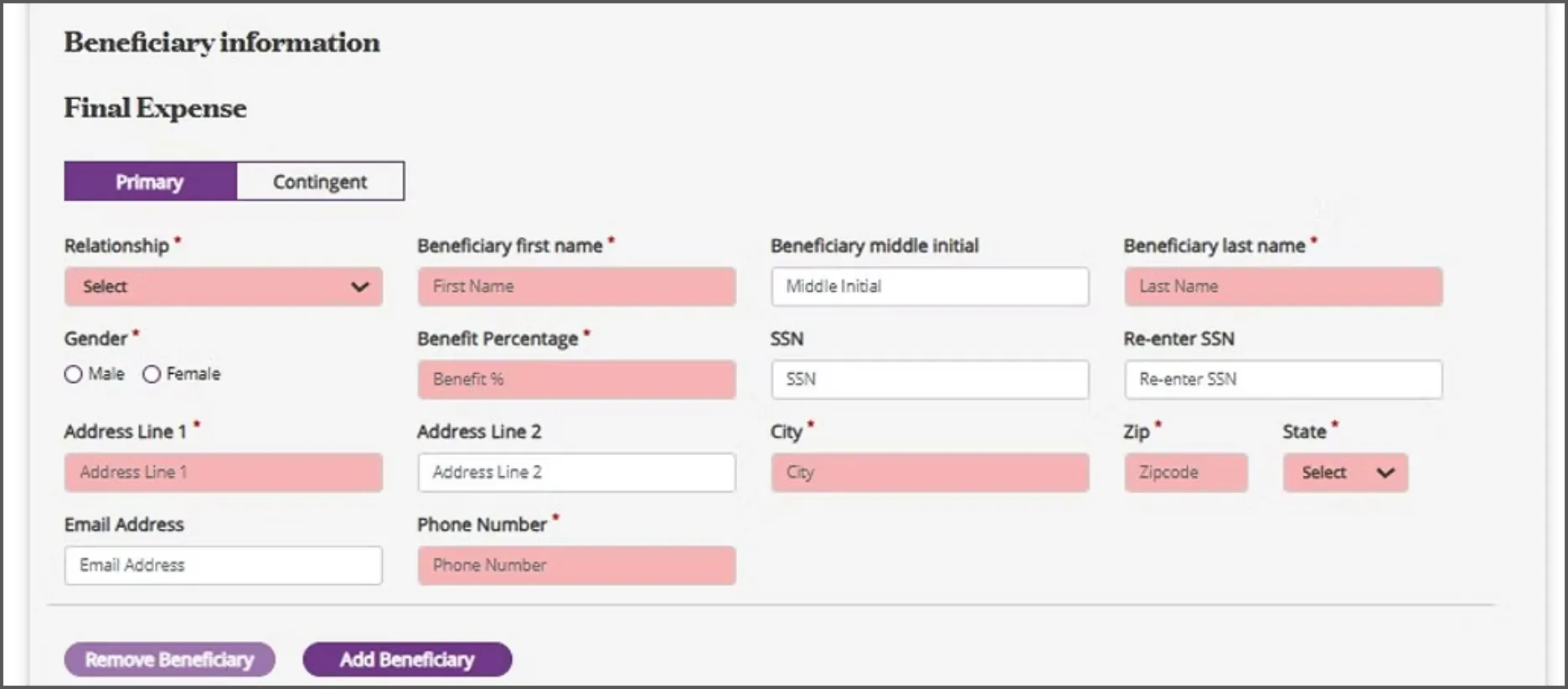
Fill in the Primary Beneficiary's information.
Benefit Percentage. If there is only one beneficiary, put 100 as the percentage. If more than one primary, each percentage must equal to 100%. For example, if two beneficiaries, the percentage split must be 50/50. If three beneficiaries, the percentage split must be 34/33/33.
Beneficiary Address. To expedite the application process, you may enter the applicant's address and phone number as the beneficiary's so that you can proceed. However it is recommended that you collect the beneficiary's phone number so that you can reach out to them to help them with a policy.
If there are additional primary beneficiaries, you may add them by clicking on "Add Beneficiary".
To add a Contingent (Back-up) Beneficiary, click on the "Contingent" tab on the top left and click on "Add Beneficiary".
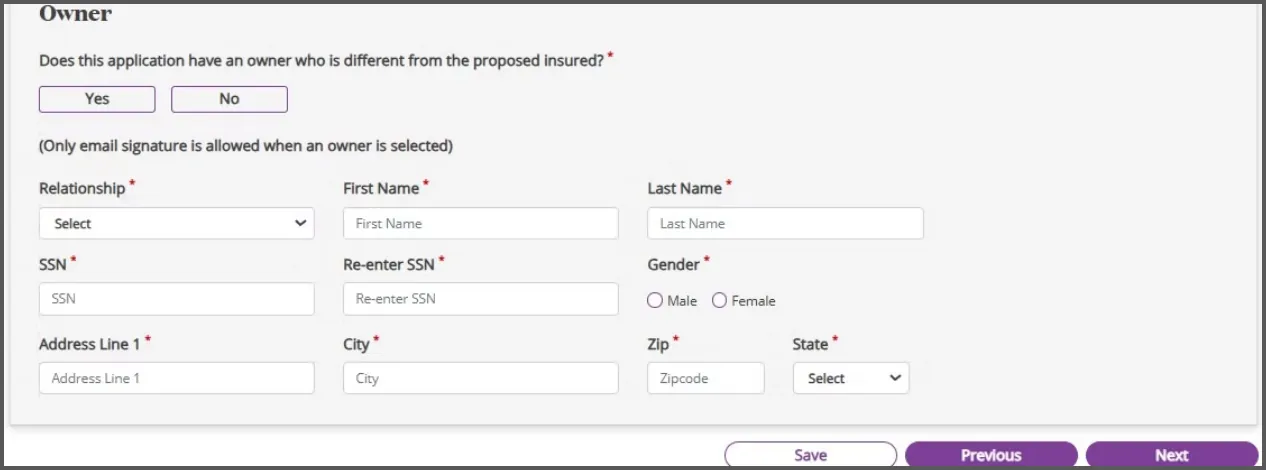
If you select "Yes", you will need to print the application and obtain a wet signature from the insured and the owner. Instant decision will not be available with wet signature.
Click NEXT
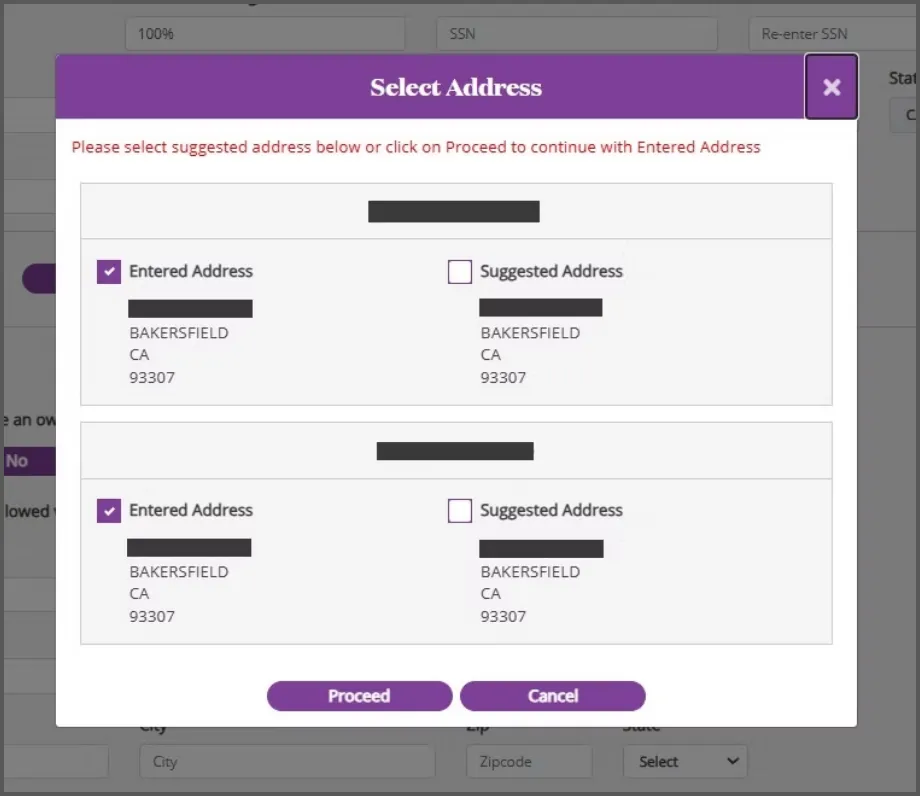
Confirm address of insured and beneficiaries are correct. Aetna's database will find the address on their system and suggest their format.
After confirming, click PROCEED
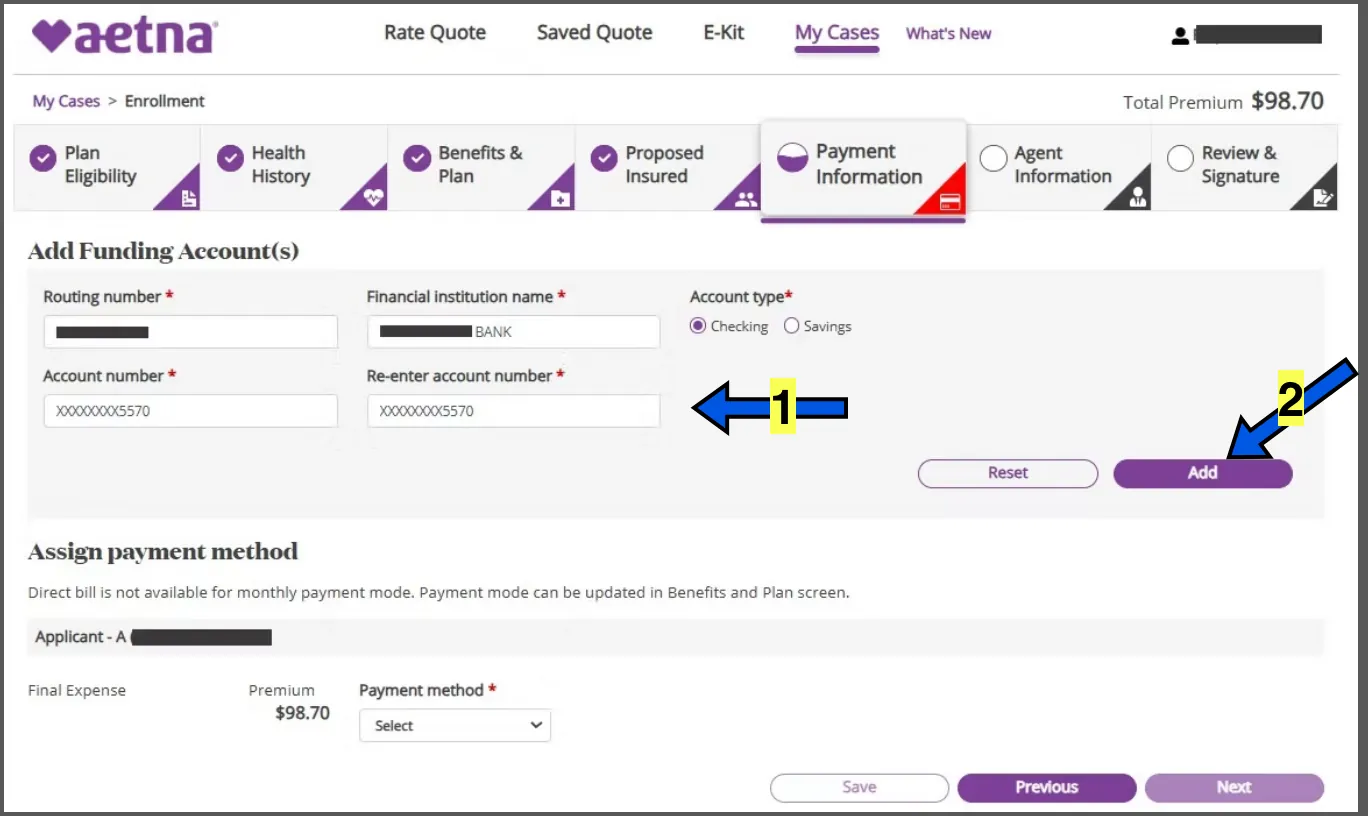
If client declines to give payment information, you may put them on direct billing by following the note on the Benefits and Plan Section.
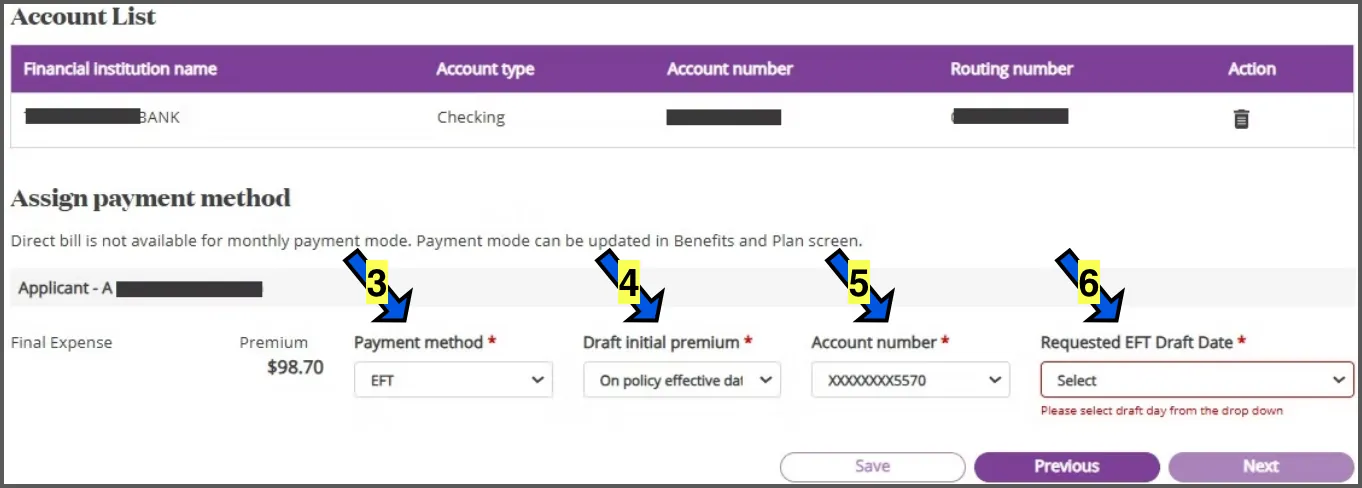
Once, you press "Add", it will now show an "Accounts List" section with the bank account you just entered.
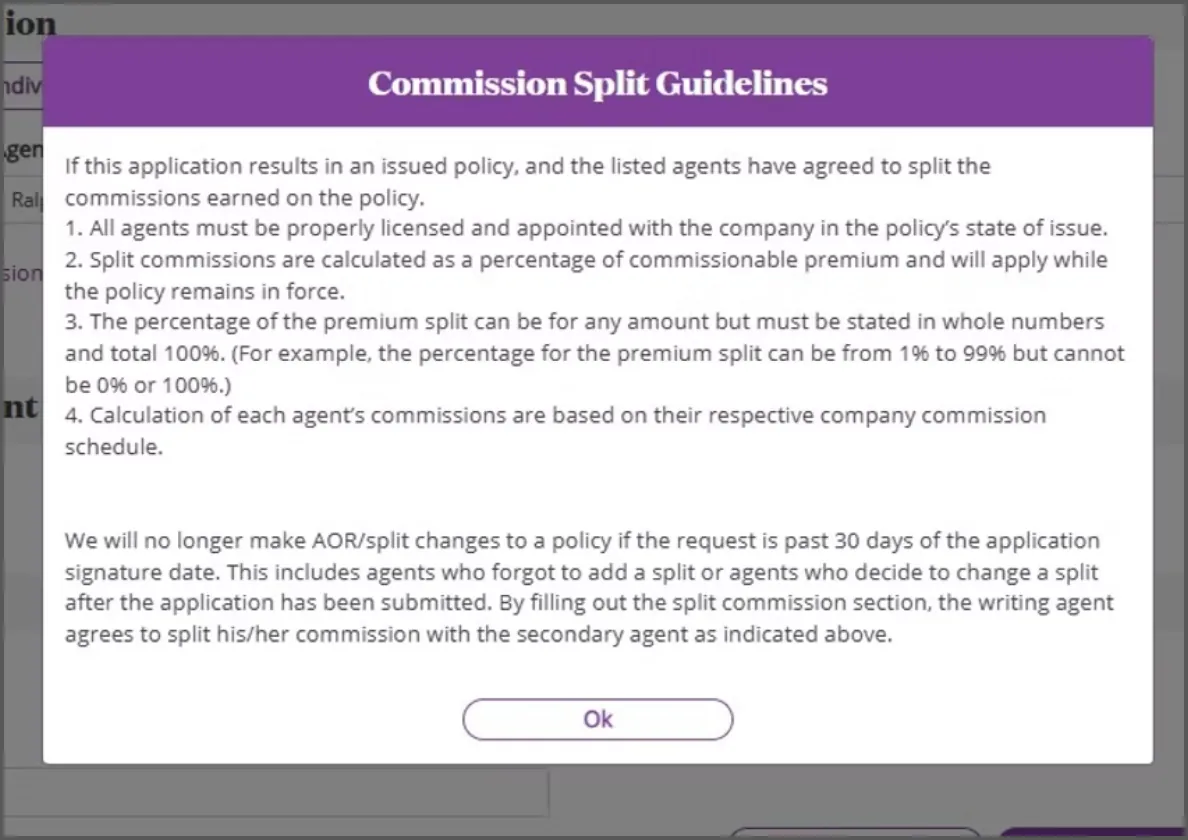
Read "Commission Split Guidelines" IF NEEDED.
Click OK
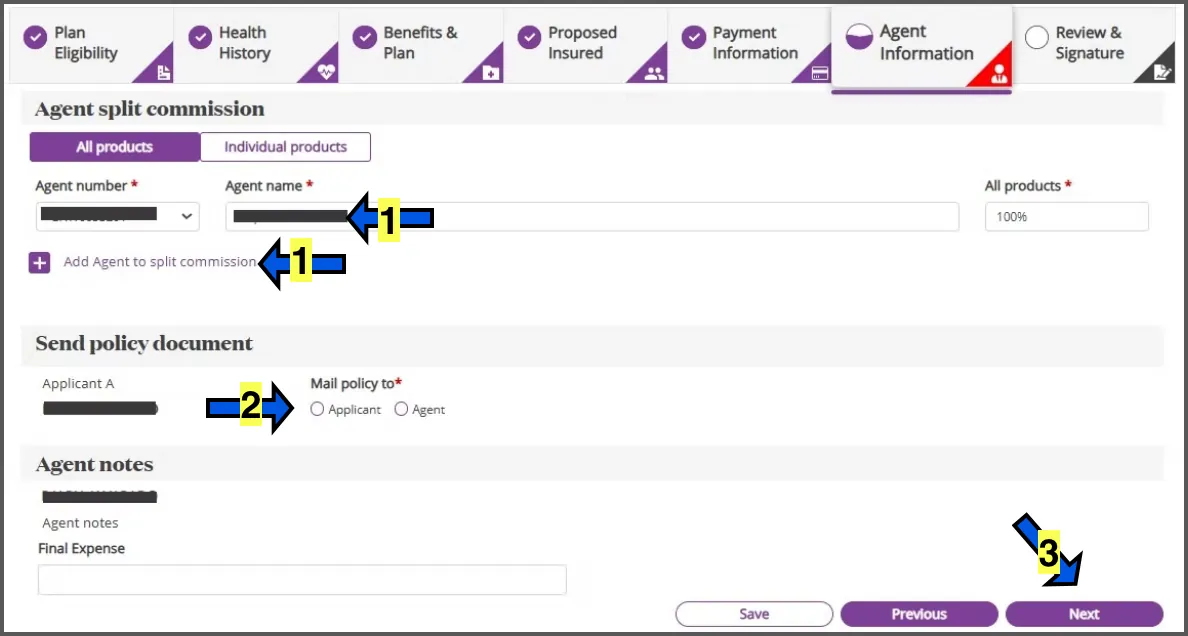
If there will be a commission split, click on the box where it says "Add agent to split commission". NOTE: Agent split must equal 100% combined. for example 50/50, 75/25, 60/40.
Leave Agent Notes Blank.
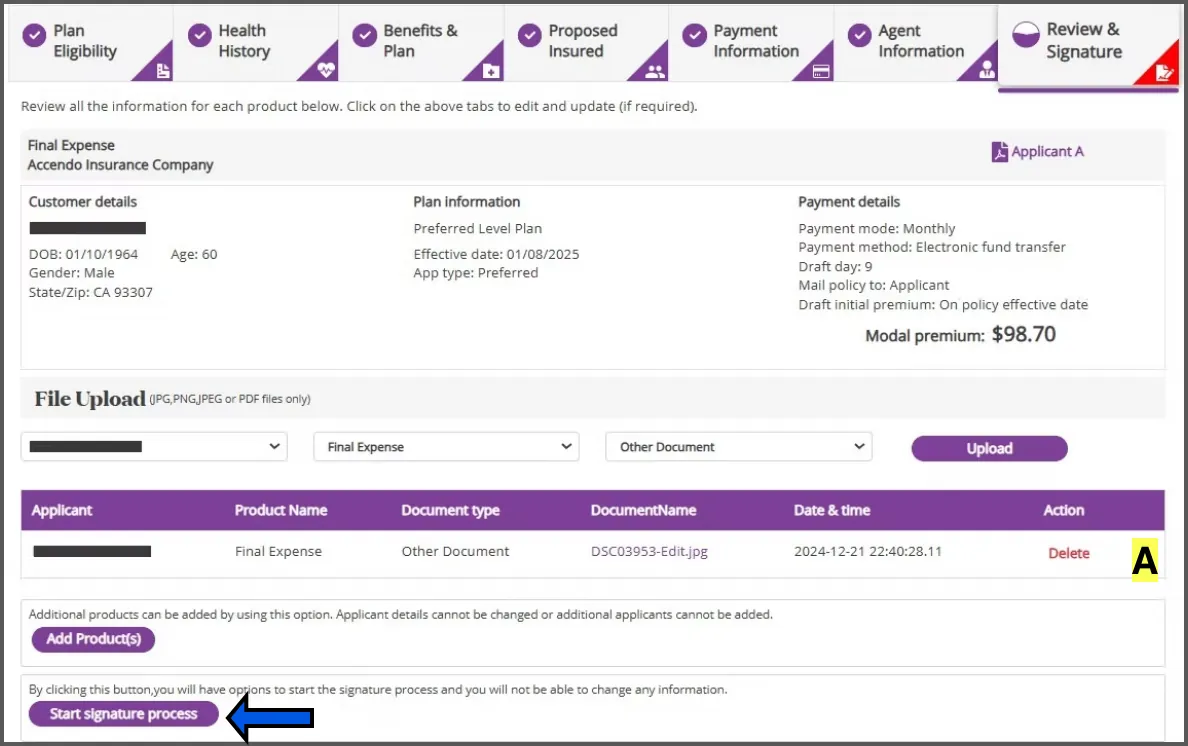
Review client details.
Section A does not normally come up unless the applicant's identity cannot be verified. An ID or Driver's License will need to be provided by the insured and uploaded here.
Skip "Add Products"
Click START SIGNATURE PROCESS
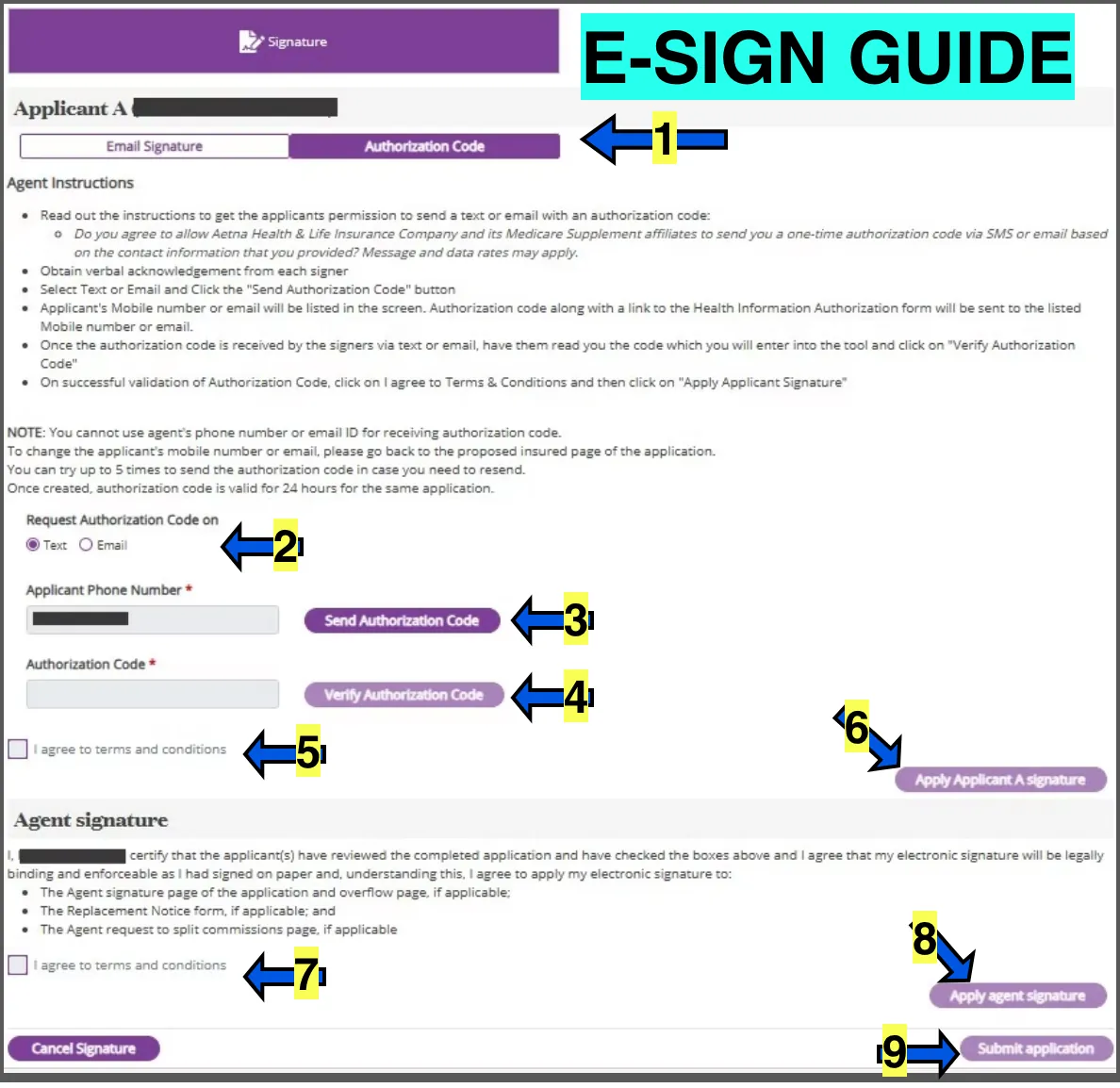
Read the blue script lines to the client word for word. The screenshots are what the client sees on their phone.

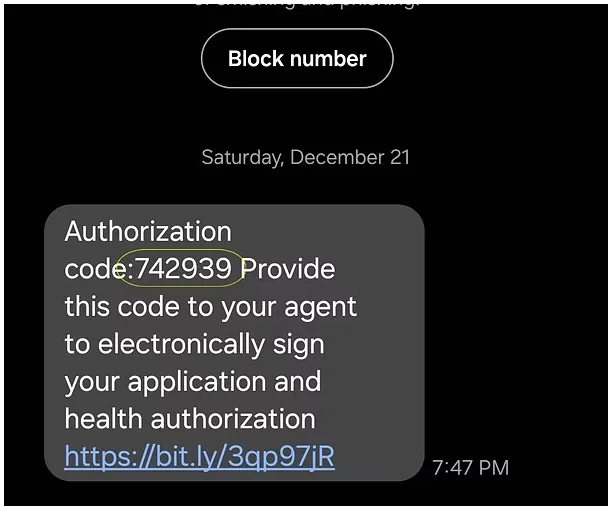
The photos above show what the applicant will see on their phones.
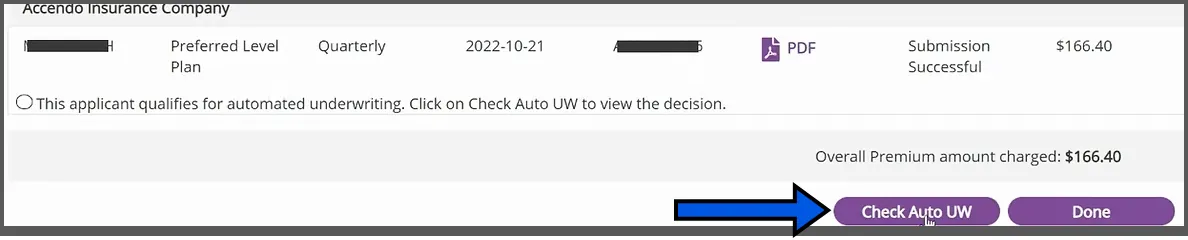
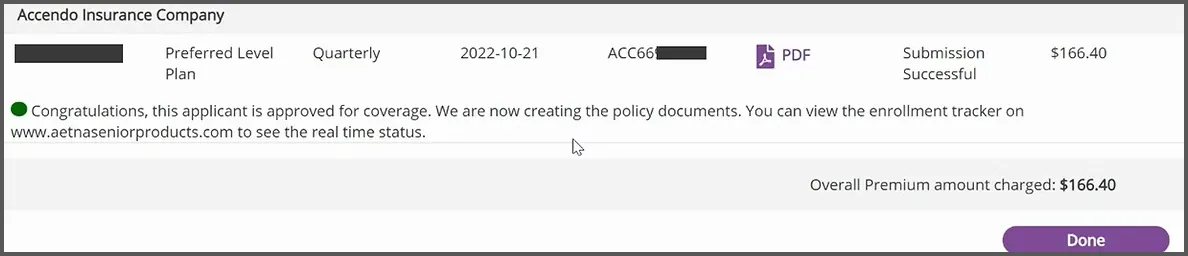
Click on the CHECK AUTO UW button to load the instant decision. You will see a progress bar populate.