
DFG Agents Only
Enter your access code to view this page.
Incorrect PIN — try again.
Duse Financial Group · Agents Only
Enter your access code to view this page.
 American Amicable
Senior Choice · Home Protector (immediate decision) · 23 steps · 1 e-sign script
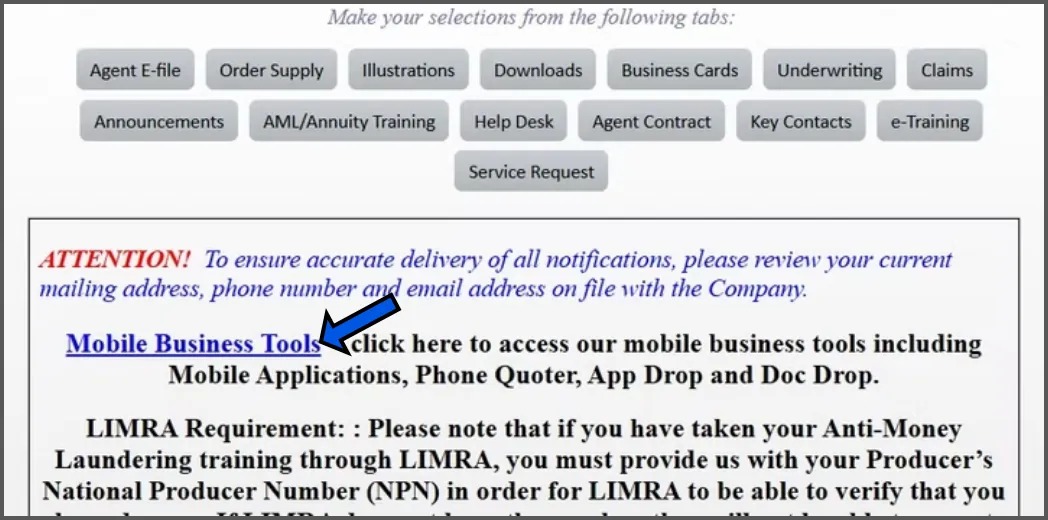
From your portal dashboard, click on MOBILE BUSINESS TOOLS.
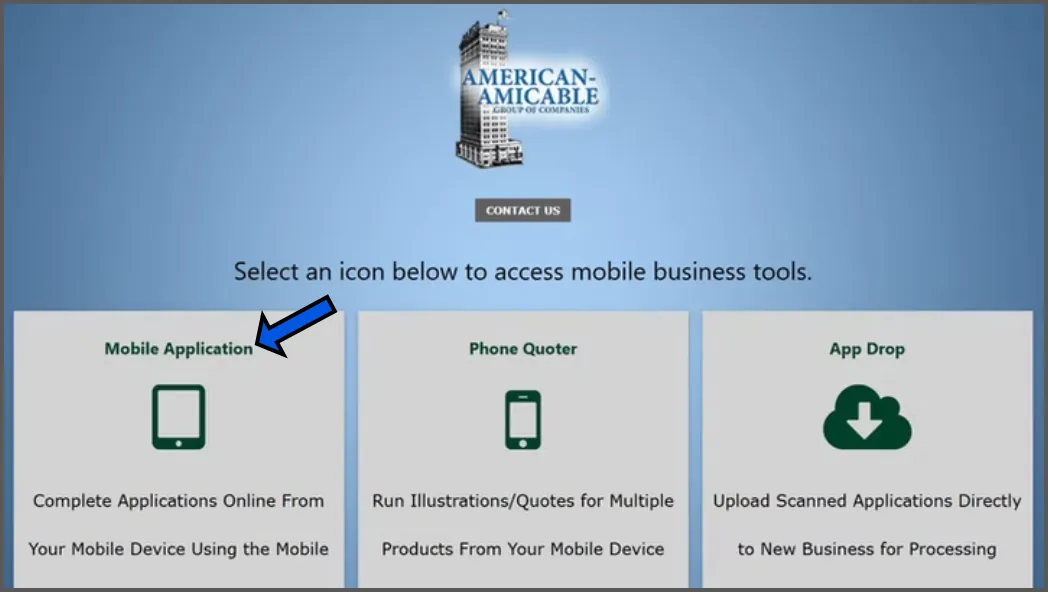
Click on MOBILE APPLICATION.
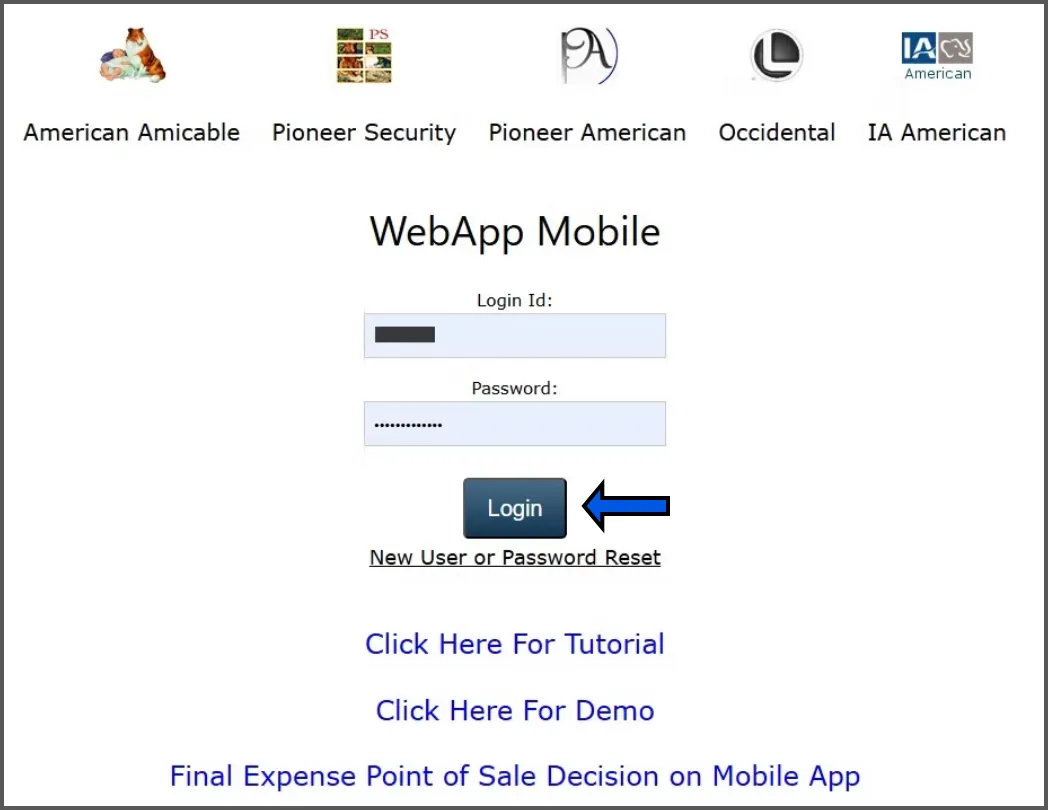
Log into your e-app portal.
Your Login ID is your agent number.
Enter your password and then click LOGIN.
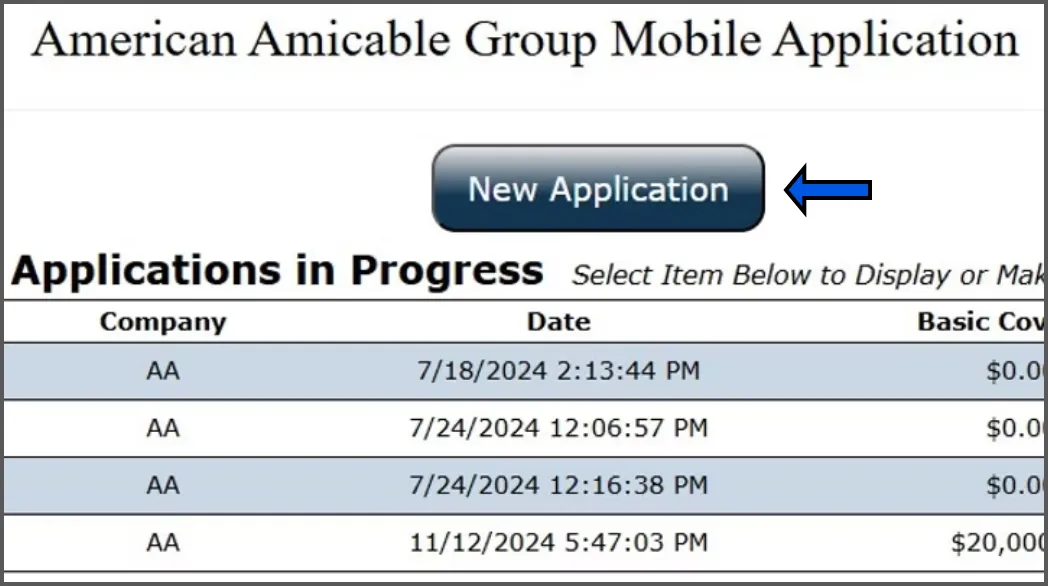
Click on NEW APPLICATION.
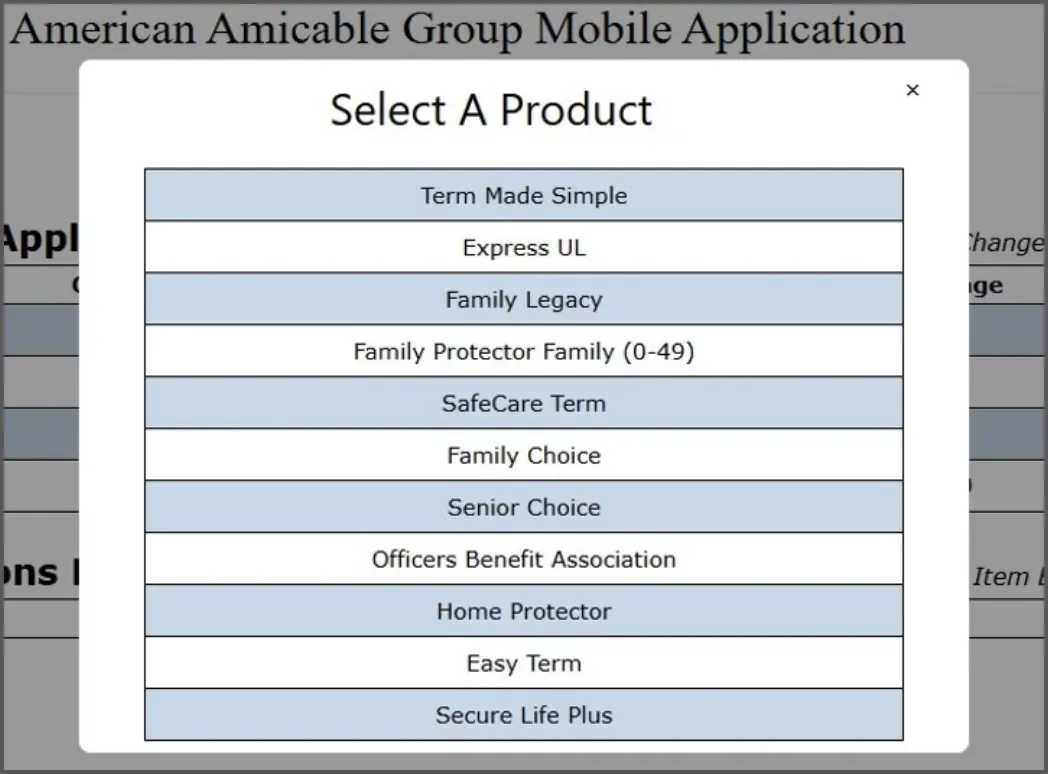
Choose the product your client is applying for.
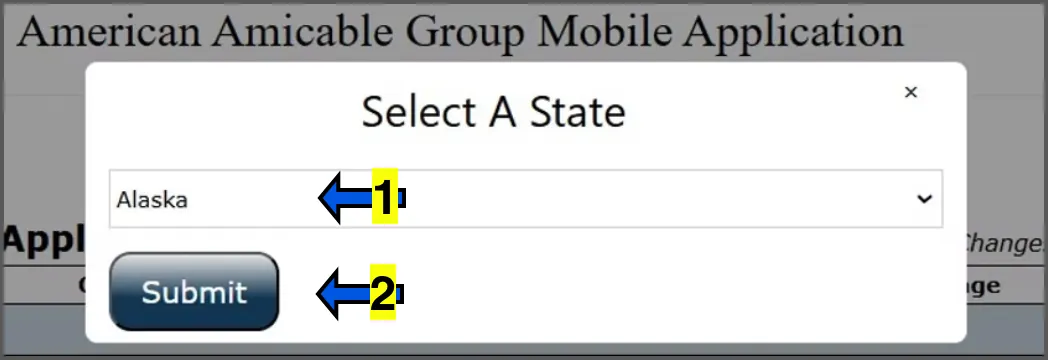
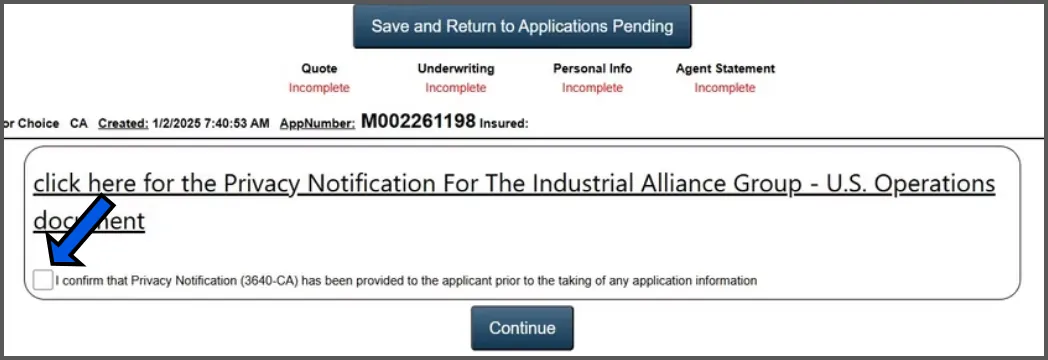
Click on the check box next to "I confirm"
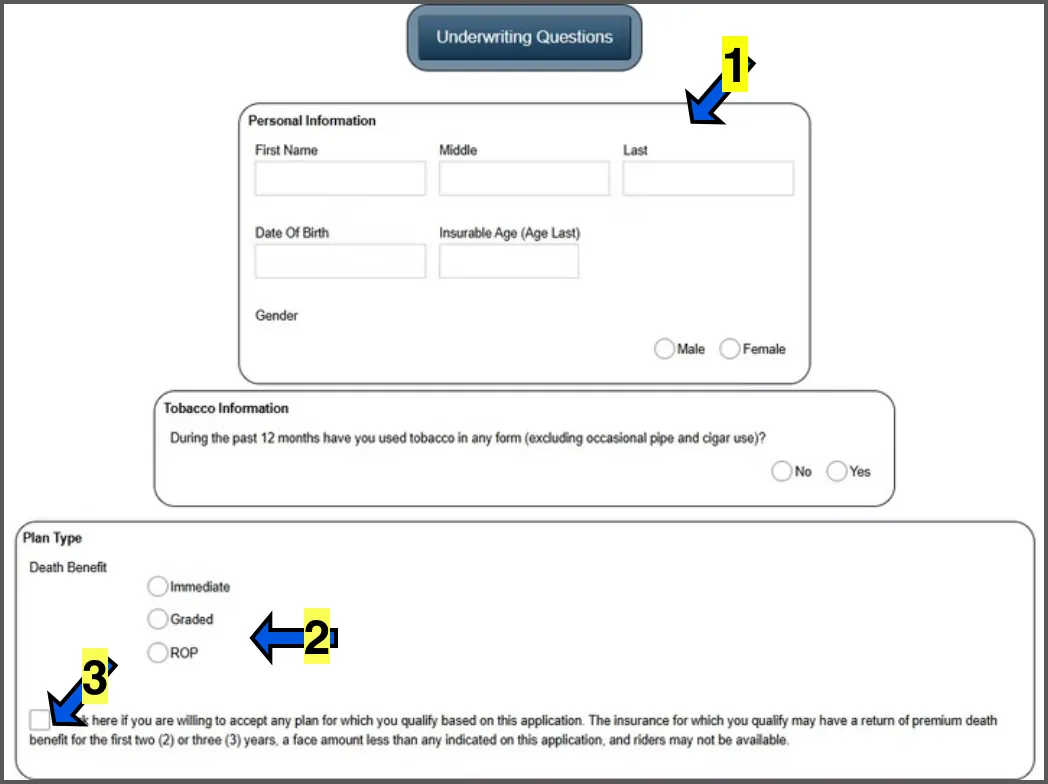
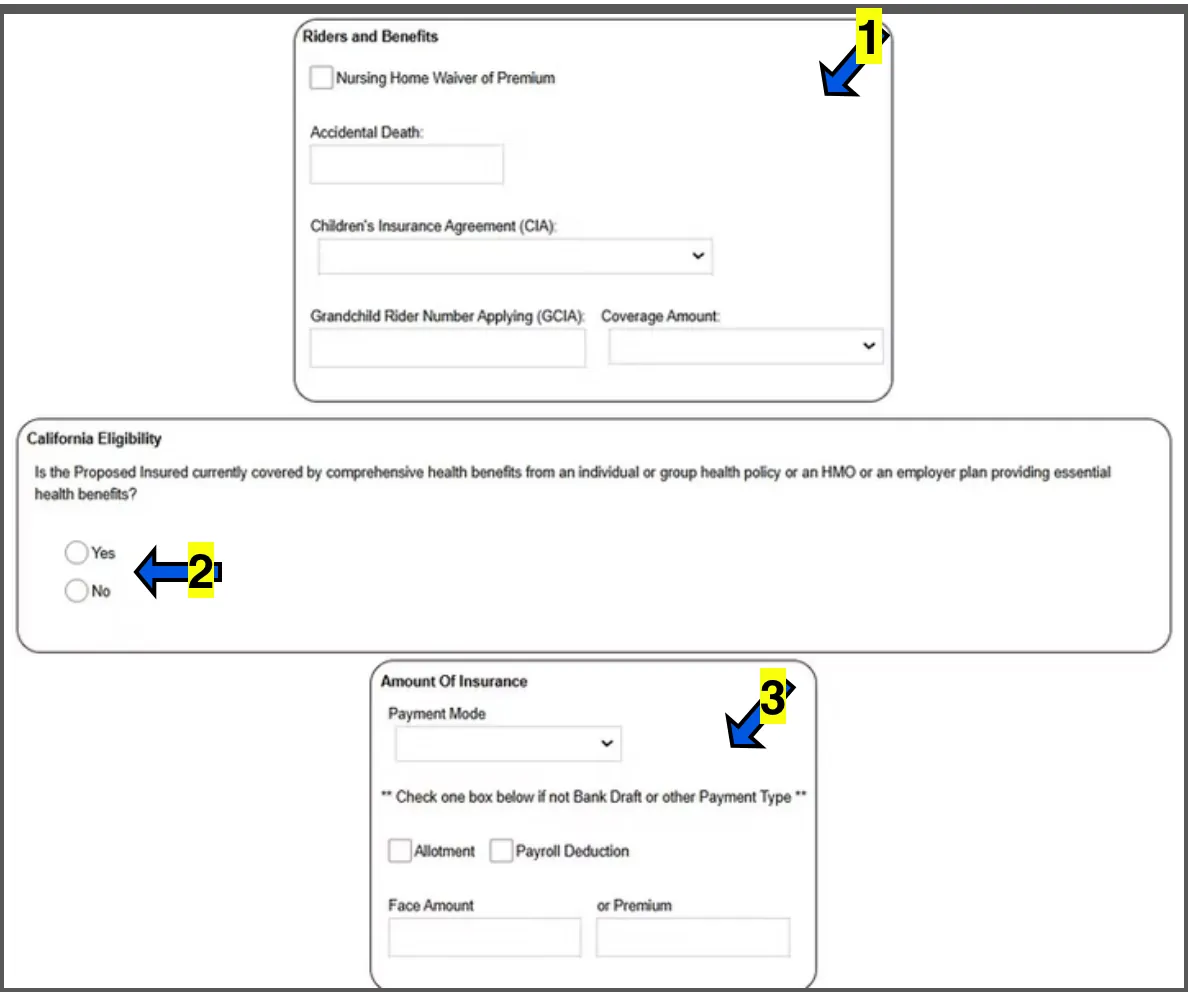
On the next screen, the first section is "Riders and Benefits". (Optional)
Nursing Home Waiver of Premium. This rider waives the premiums if the insured is confined to a nursing home for 90 days or more. Premiums must be paid during the 90 day wait period and the nursing home must be recommended by a physician due to the insured's inability to care for himself/herself. This rider is not available in all states.
Accidental Death Benefit Rider. Every policy already includes death due to an accident. However, the accidental death benefit rider doubles the coverage amount in case of an accidental death. For example, if a client has $20,000 in base coverage and they pass away of natural causes, their beneficiary will receive $20,000. If they pass due to an accidental death, the beneficiary will receive $40,000.
"Children's Insurance" allows the insured to add term coverage for their minor children under 18 years of age. Coverage for children expires when they turn 25 years of age. "Grandchild Rider" allows the insured to add term coverage for their minor grandchildren under 16 years of age and expires when they turn 21 years of age. Grandchild must be a minimum of 180 days old.
Second section: California Eligibility Section. This section asks if the insured has health coverage. If NO is selected, the policy will not include the Terminal Illness Rider.
Third section: Amount of Insurance. Select Payment Mode, Monthly preferred. Then in the FACE AMOUNT box, enter the amount of insurance the client is applying for.
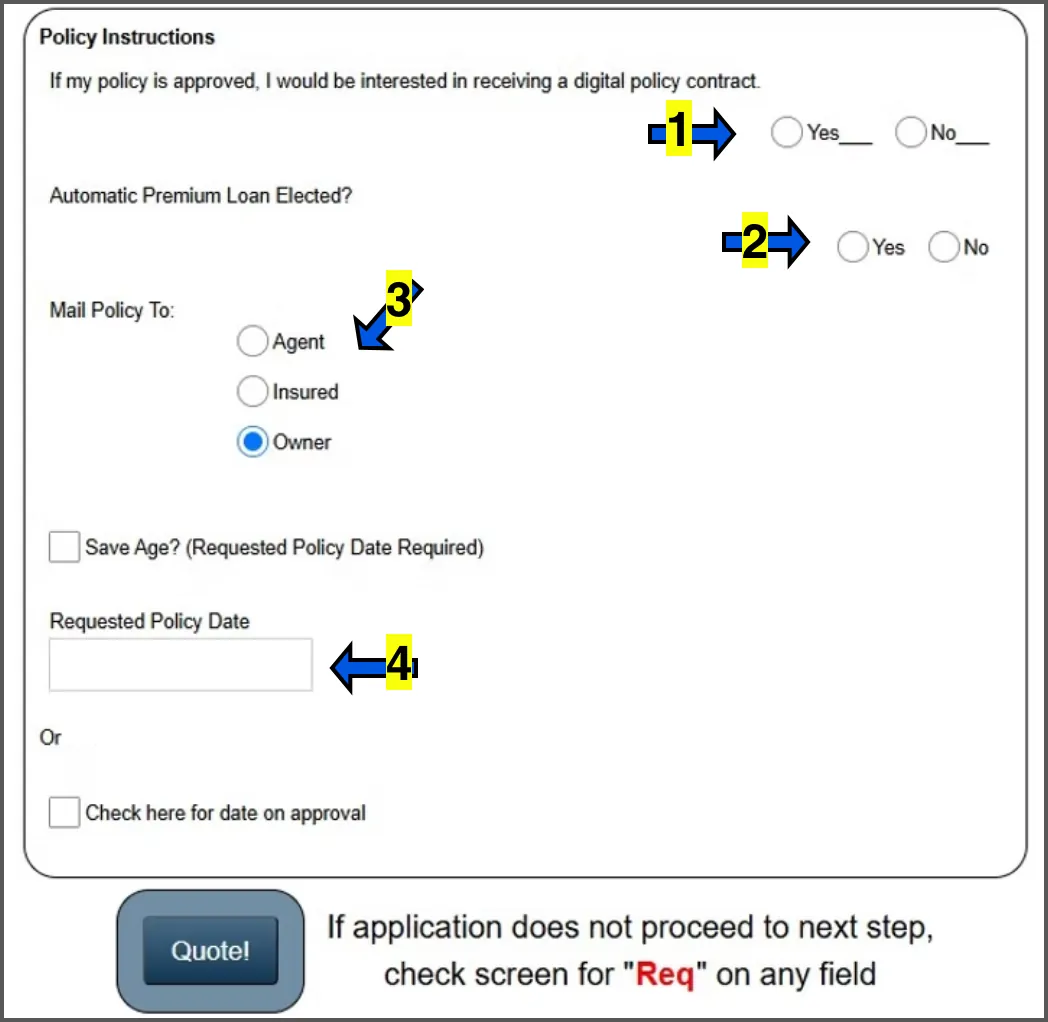
"Save Age", is an option that allows you to backdate a policy to a younger age, locking in a lower premium if the effective date is after the applicant's birthday. (Usually not selected)
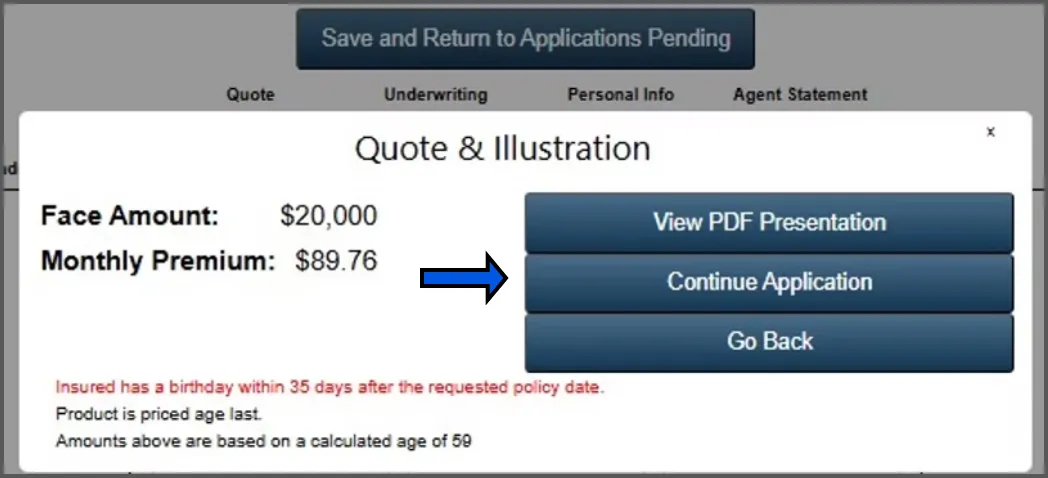
Click CONTINUE APPLICATION
"View PDF Presentation", button will populate an illustration of the policy showing coverage, cash accumulation, and description of additional riders included or selected. This is not mandatory.
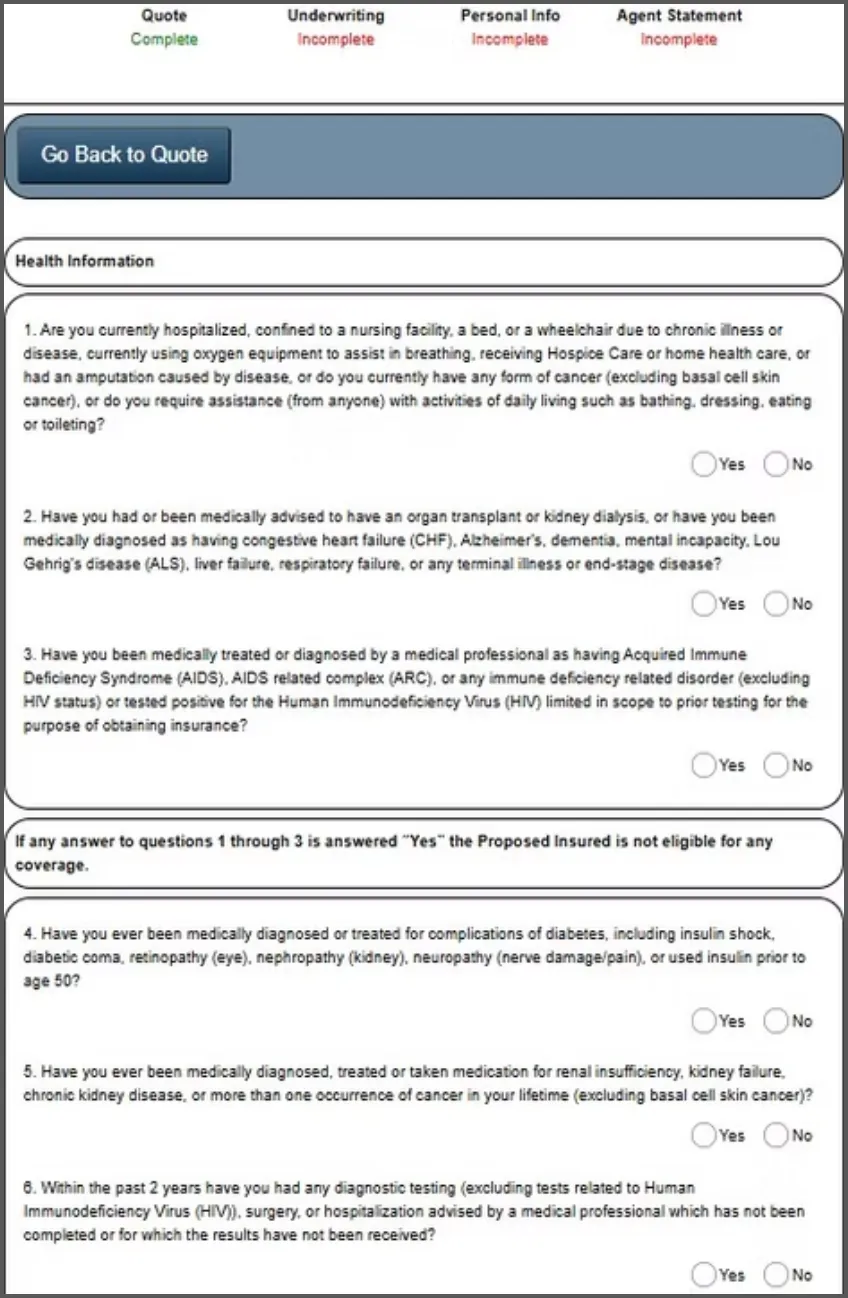
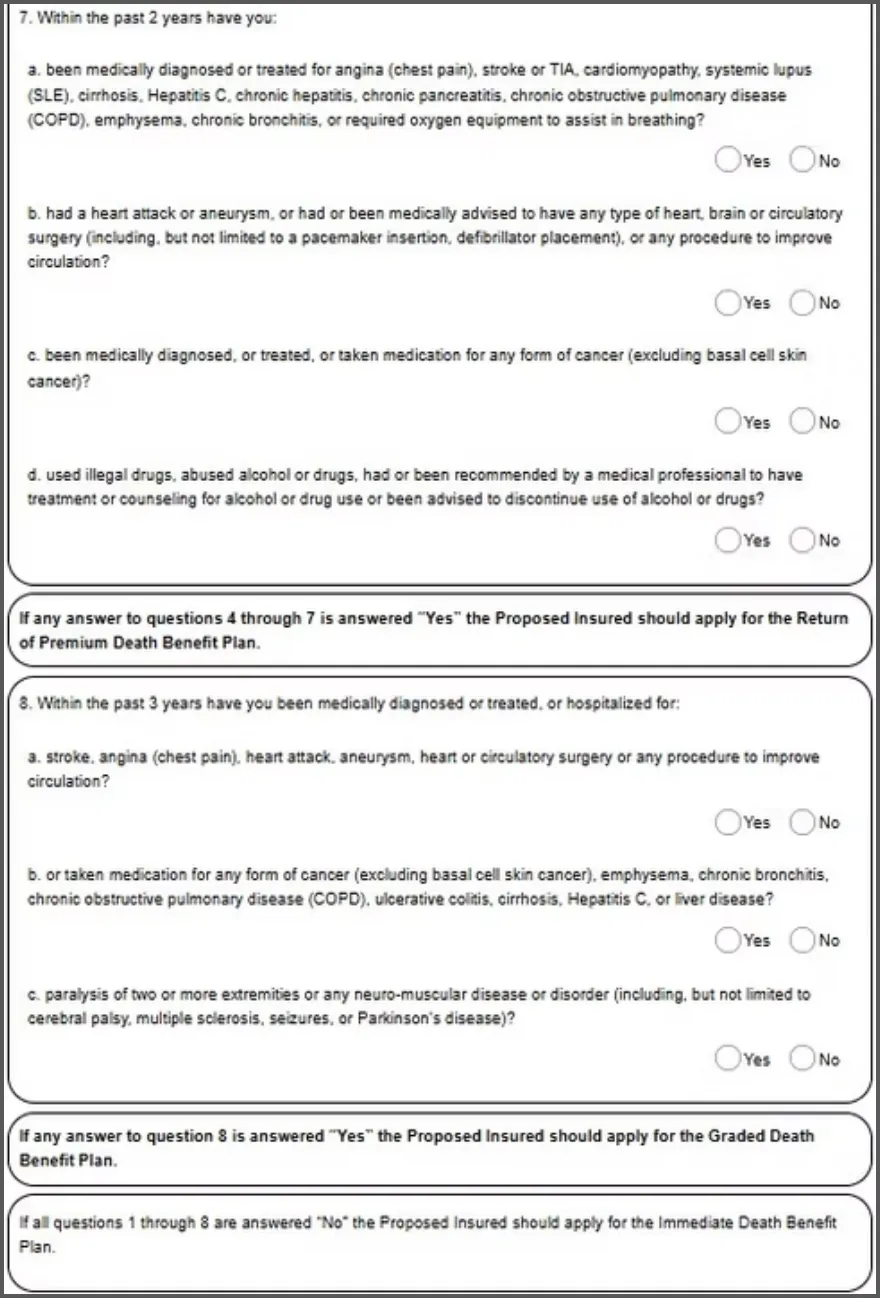
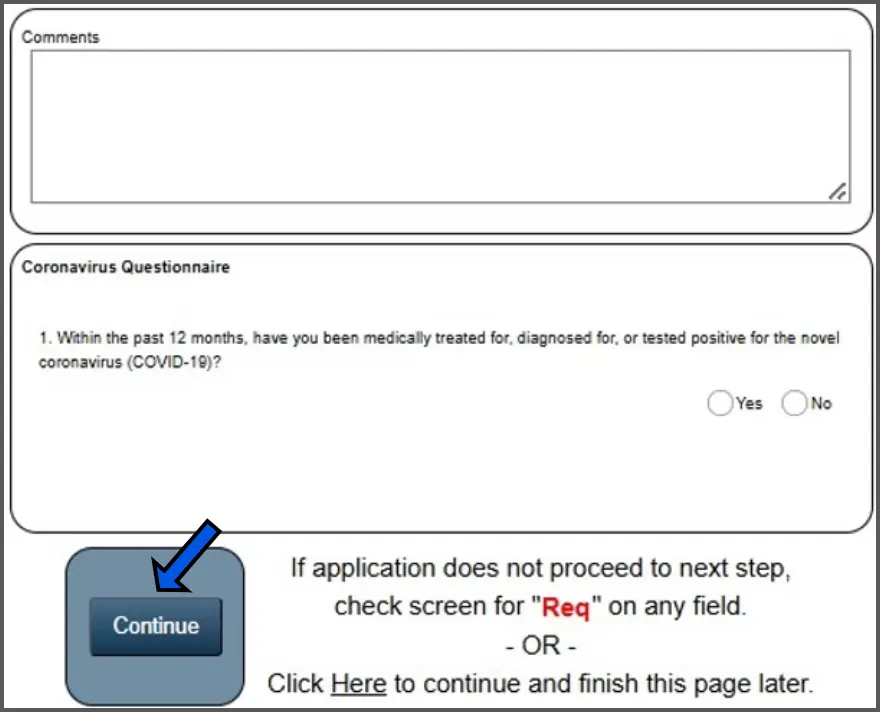
Complete the health / underwriting questions.
"Comments" section can be left blank.
Click the CONTINUE button.
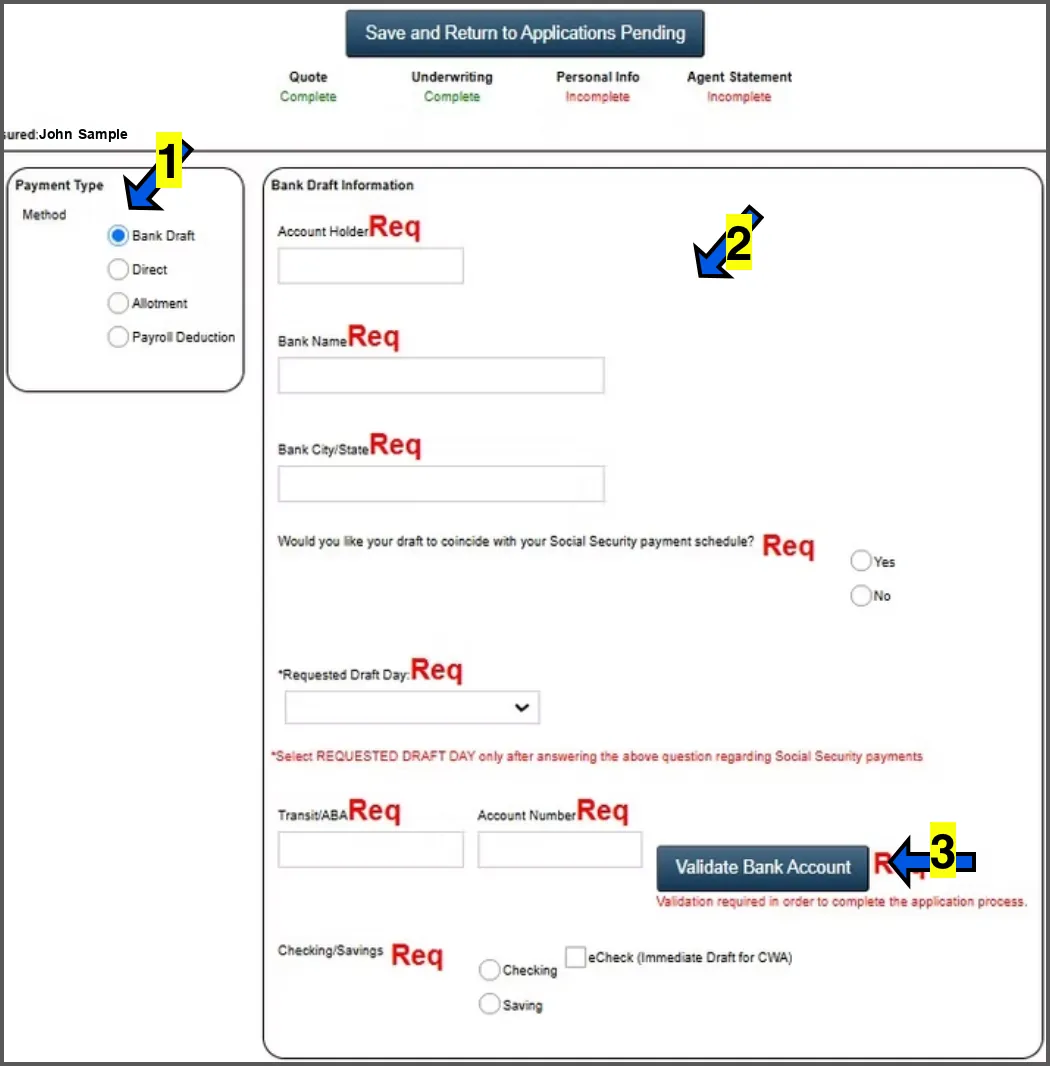
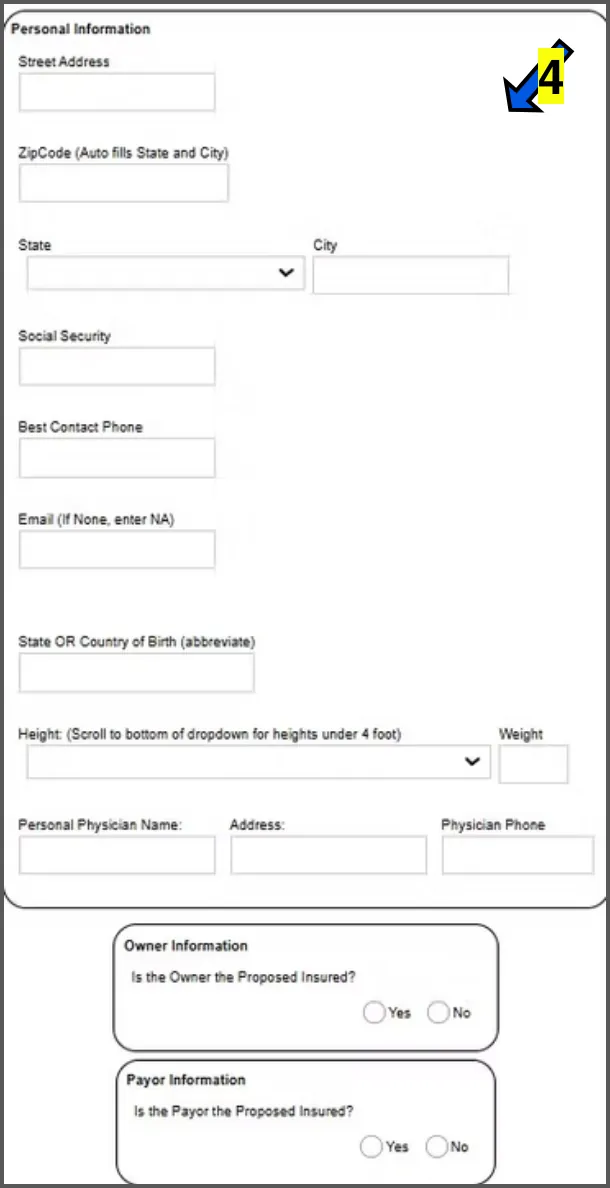
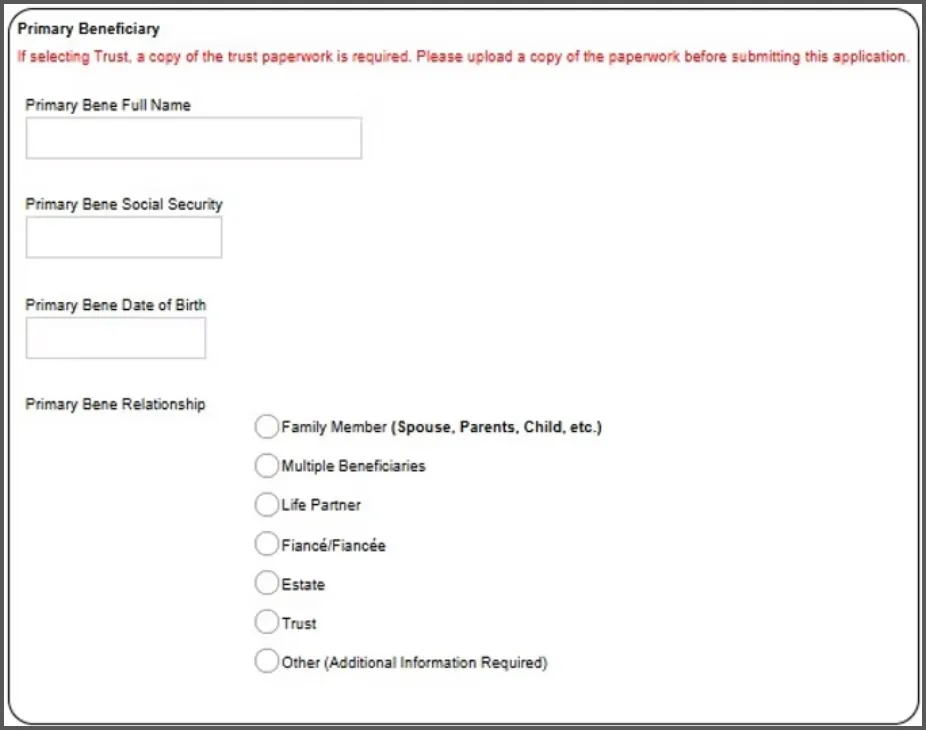
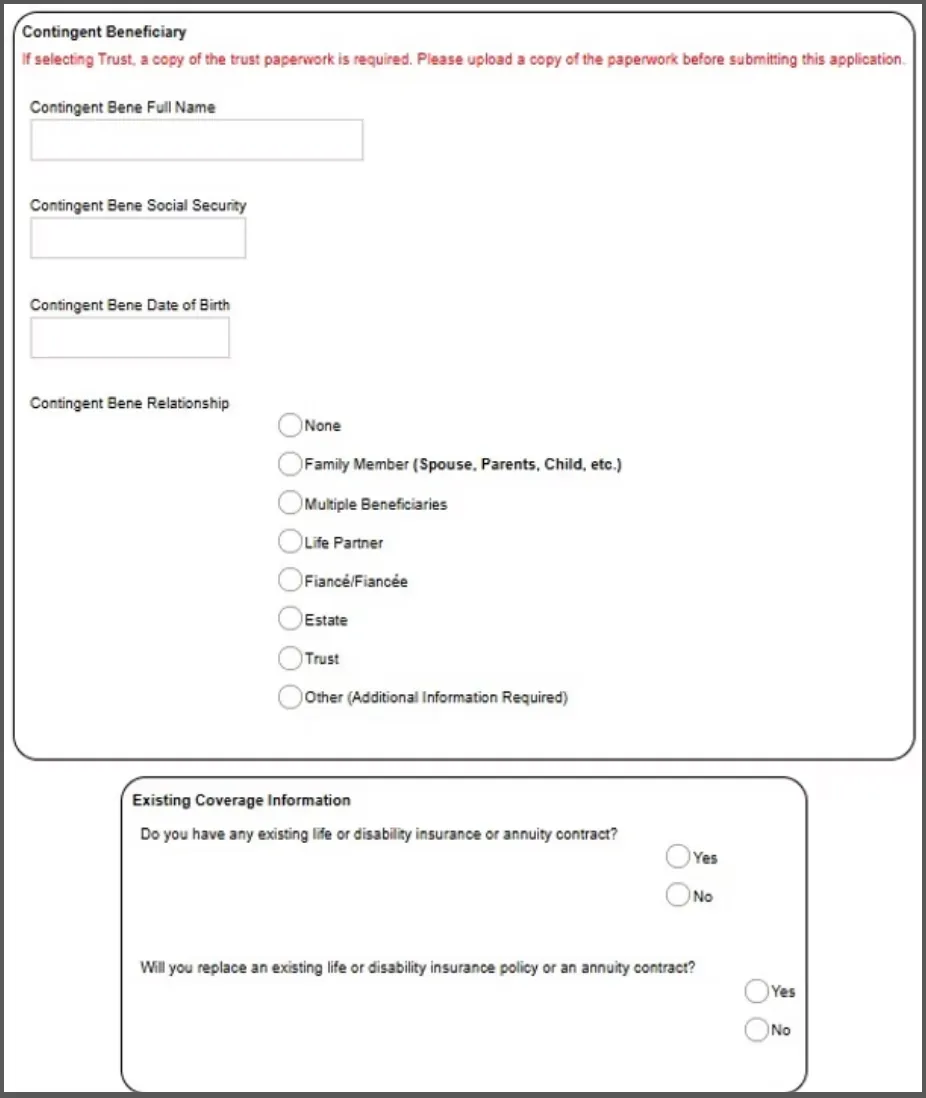
Enter the primary beneficiary information. SOCIAL SECURITY NUMBER and DATE OF BIRTH for beneficiary is NOT REQUIRED. If there are more than one beneficiary, the percentage with all combined must equal 100%. For example, if there are two, then the percentage for both should be something like 50/50 or 60/40. If three, 34/33/33. If the beneficiary relationship is "Other", the applicant will need to submit additional information justifying why the beneficiary is someone outside of the selections. Same applies to Contingent. IMPORTANT: Beneficiary must be 18 years of age and over.
EXISTING COVERAGE. Answer if the client currently has coverage and if so, if this policy will replace it. An applicant can have coverage somewhere else and still add coverage.
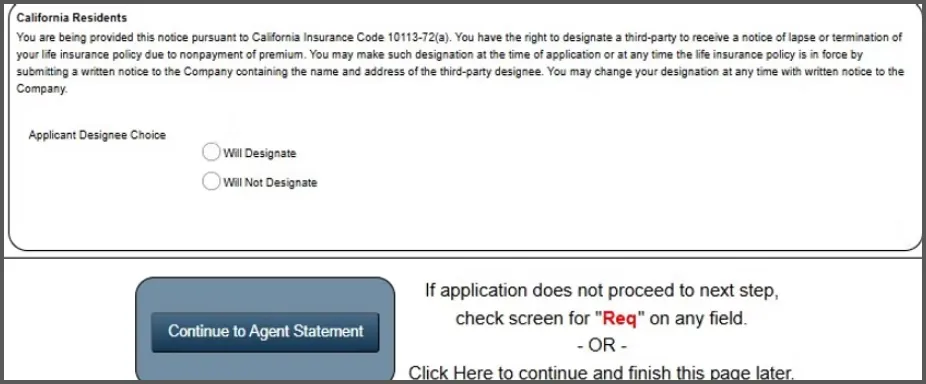
Applicant Designee Choice: If the client wants another person notified that their policy is in danger of cancelling, they can do so here.
Click the CONTINUE TO AGENT STATEMENT button.
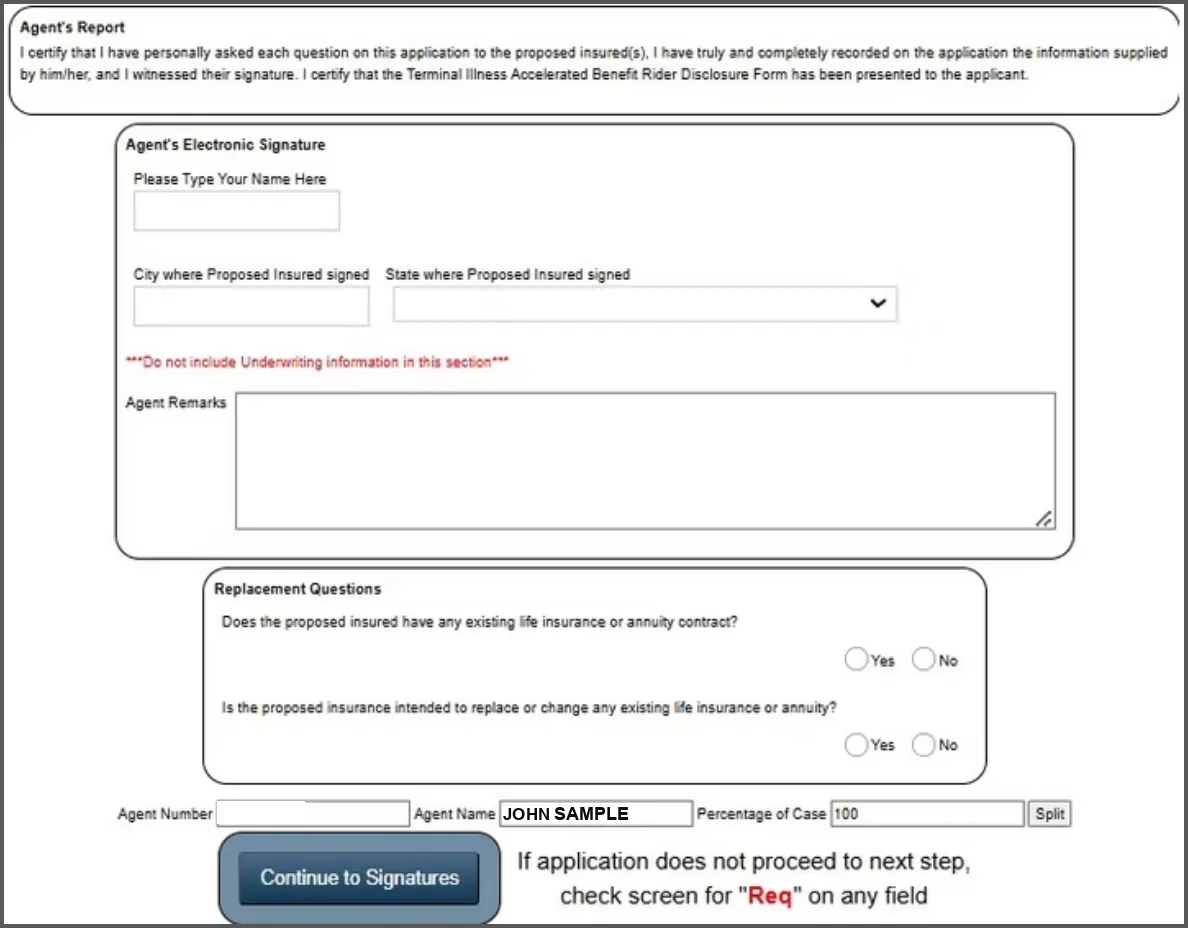
If there is an agent commission split, click SPLIT and enter the other agent's agent number. Percentage of split must equal 100% combined. For example, 50/50, 60/40, 75/25.
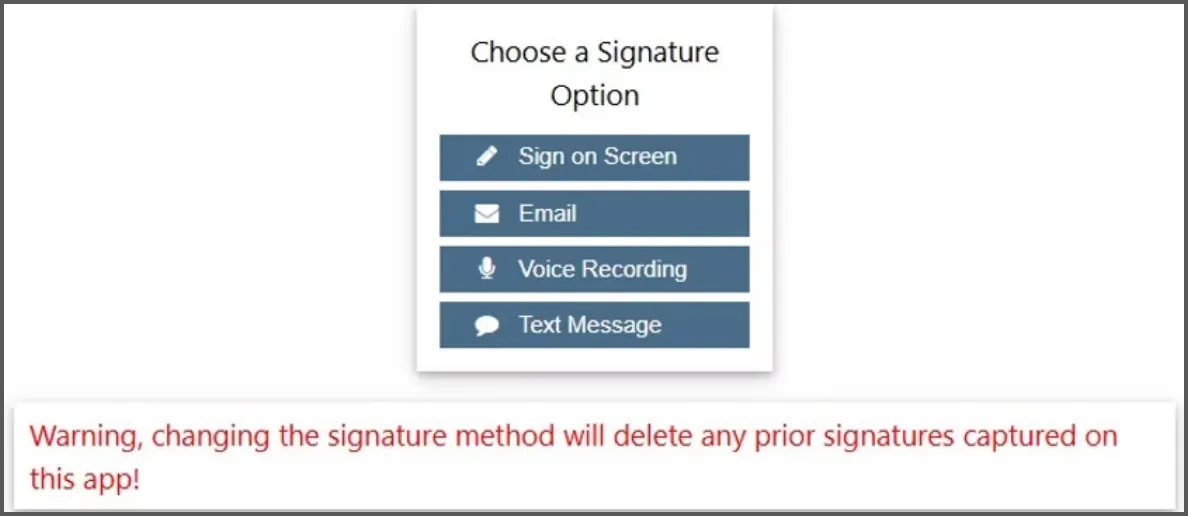
Choose method of signature. TEXT IS PREFERRED for Telesales if possible. Email would be secondary for Telesales. For in-home, use sign on screen.
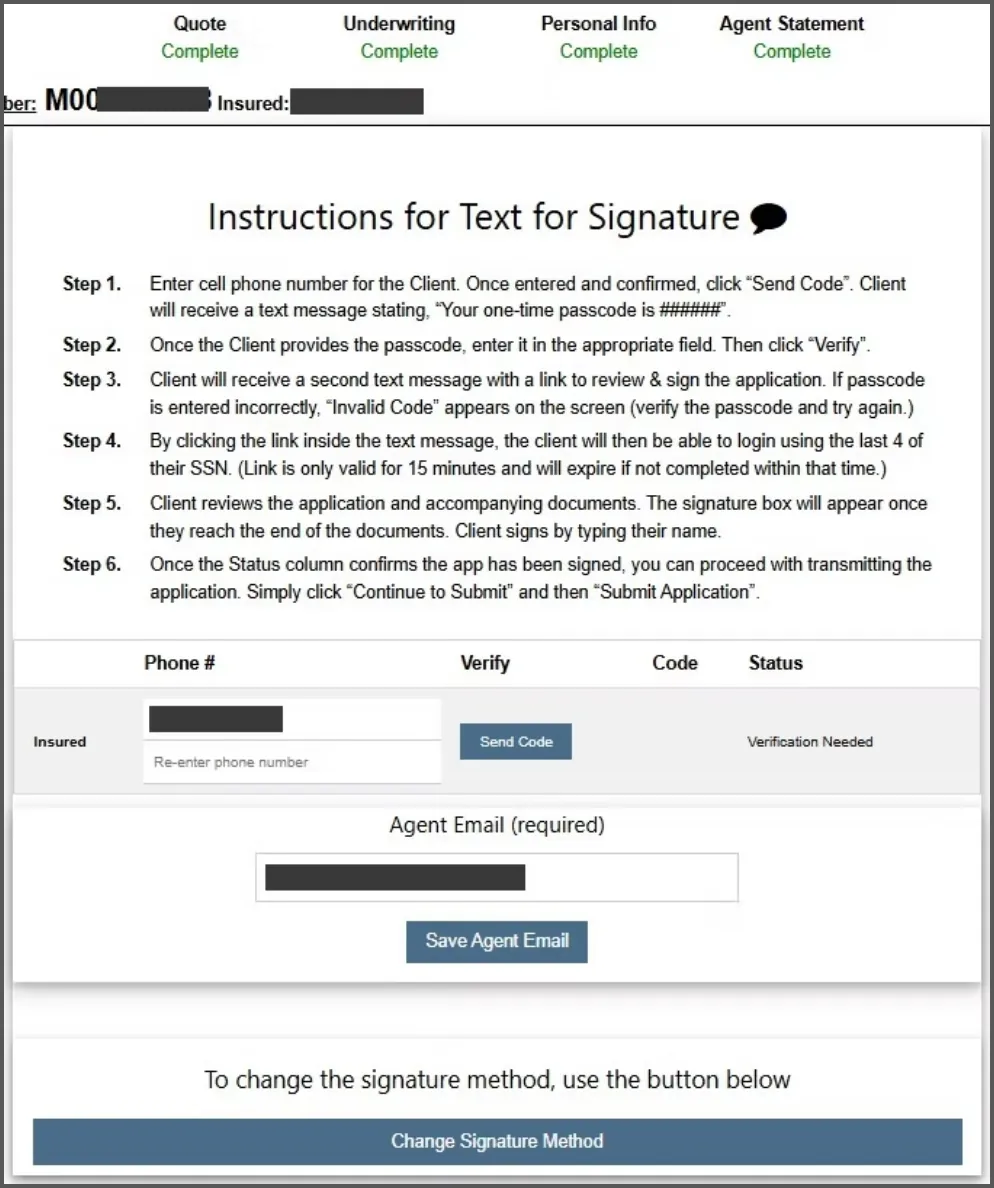
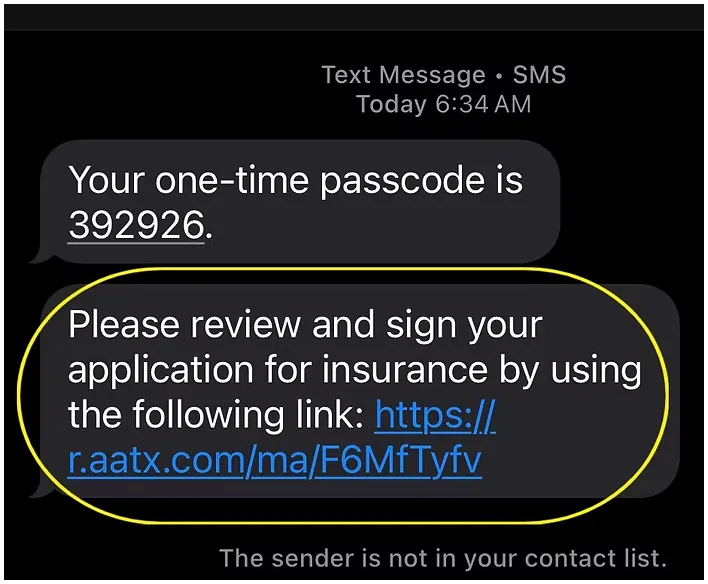
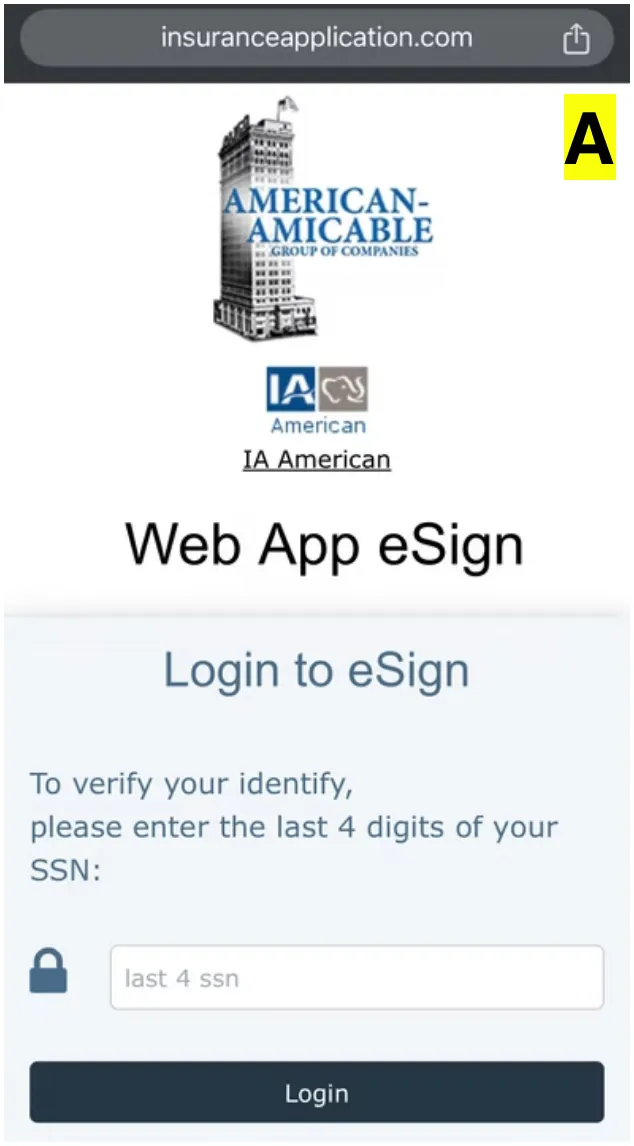
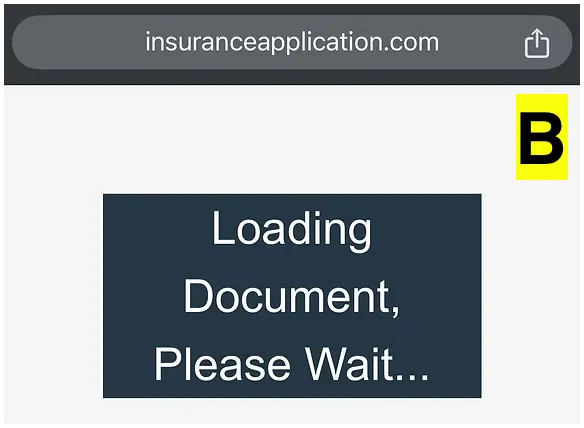
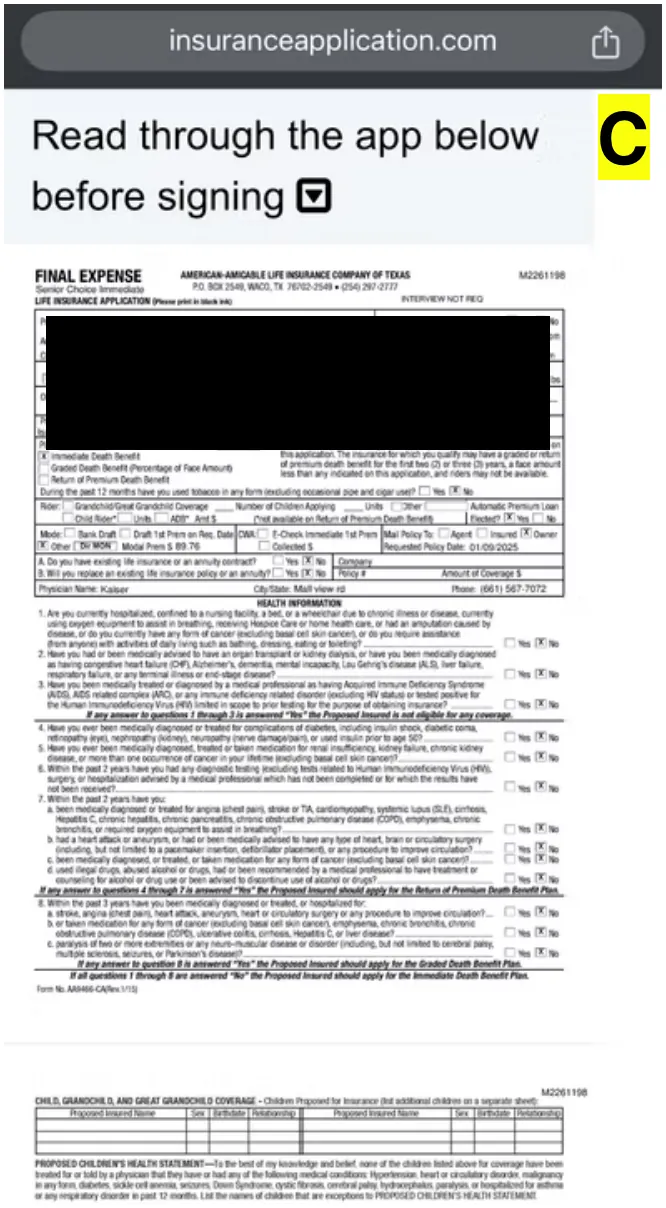
Read the blue script lines to the client word for word. The screenshots are what the client sees on their phone.
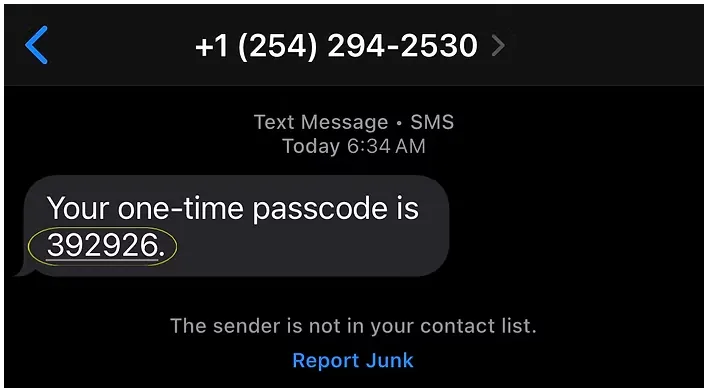
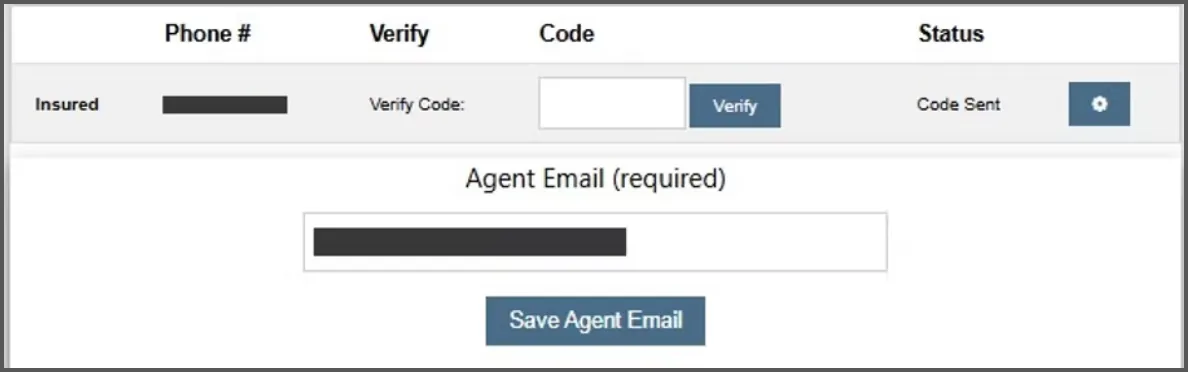
When the applicant gives you the code number, enter it in the CODE box and then click on the VERIFY button.
Enter YOUR email and click the SAVE AGENT EMAIL button.
Your applicant, will receive a second text with a link. Walk them through the rest of the signature process using the script.
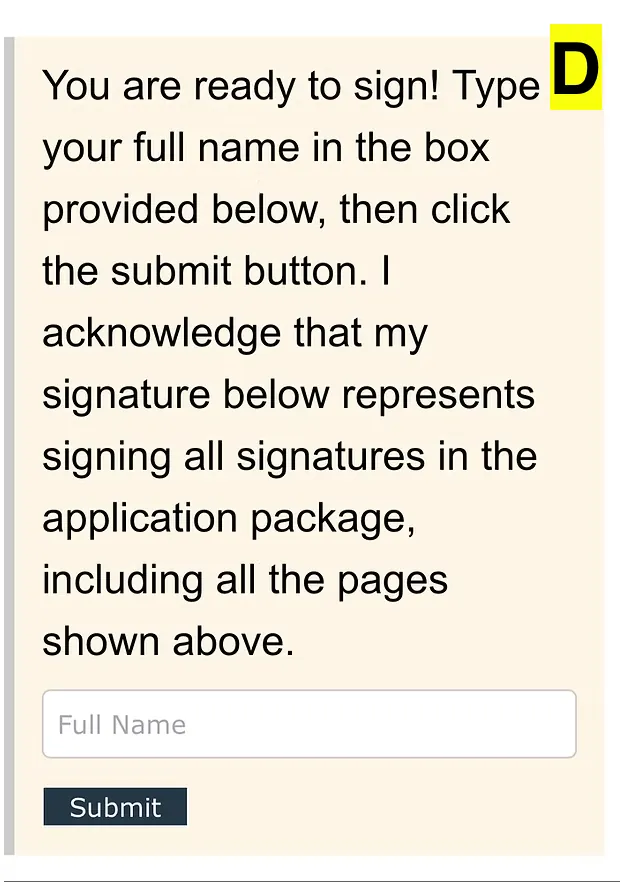
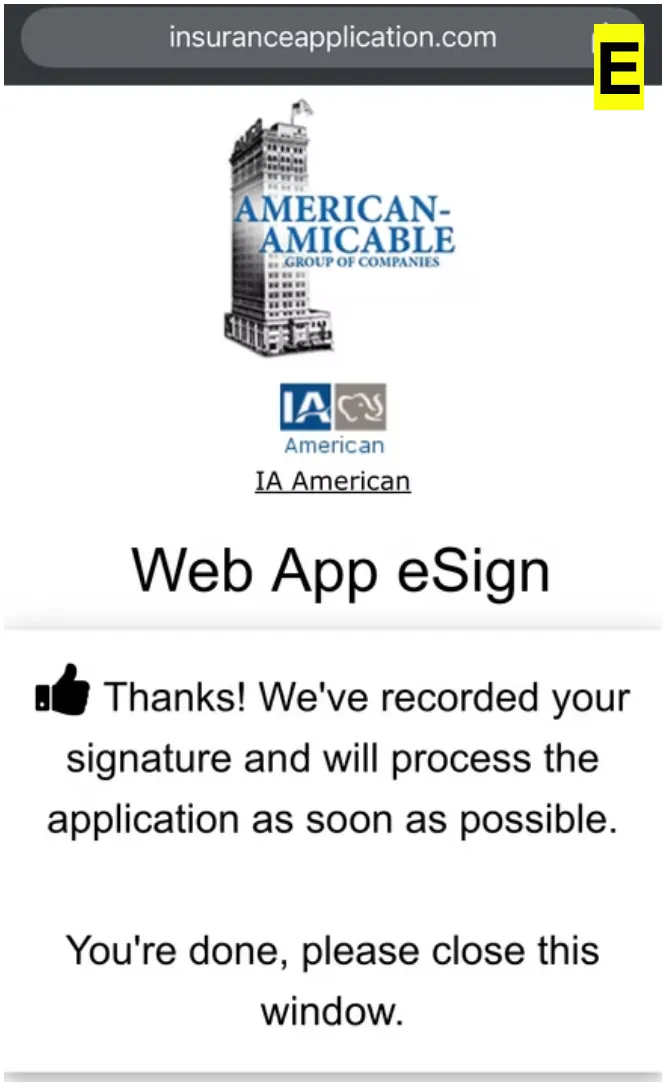
After you click SUBMIT you should now see on the screen where it says THANKS, WE'VE RECORDED YOUR SIGNATURE with a thumbs up icon next to it."
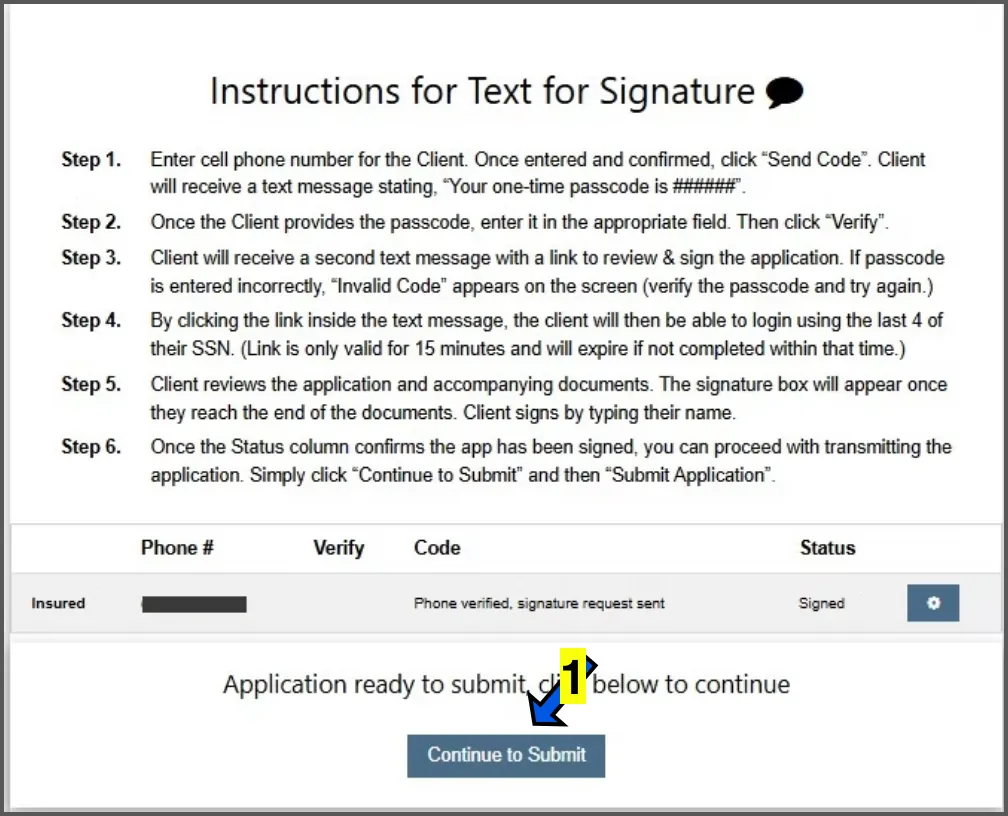
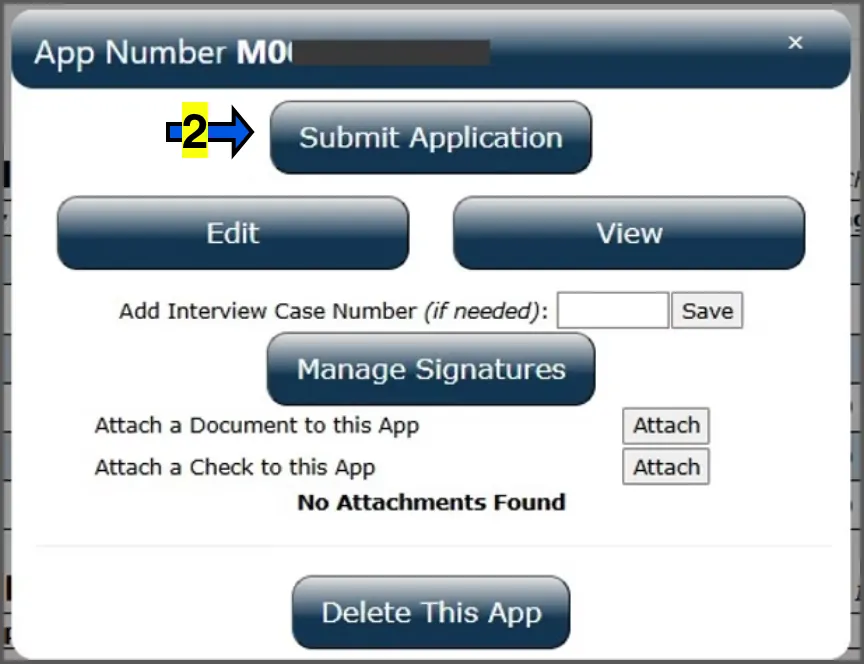
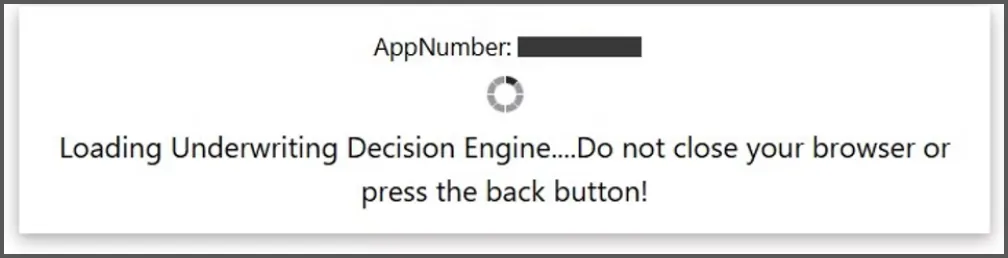
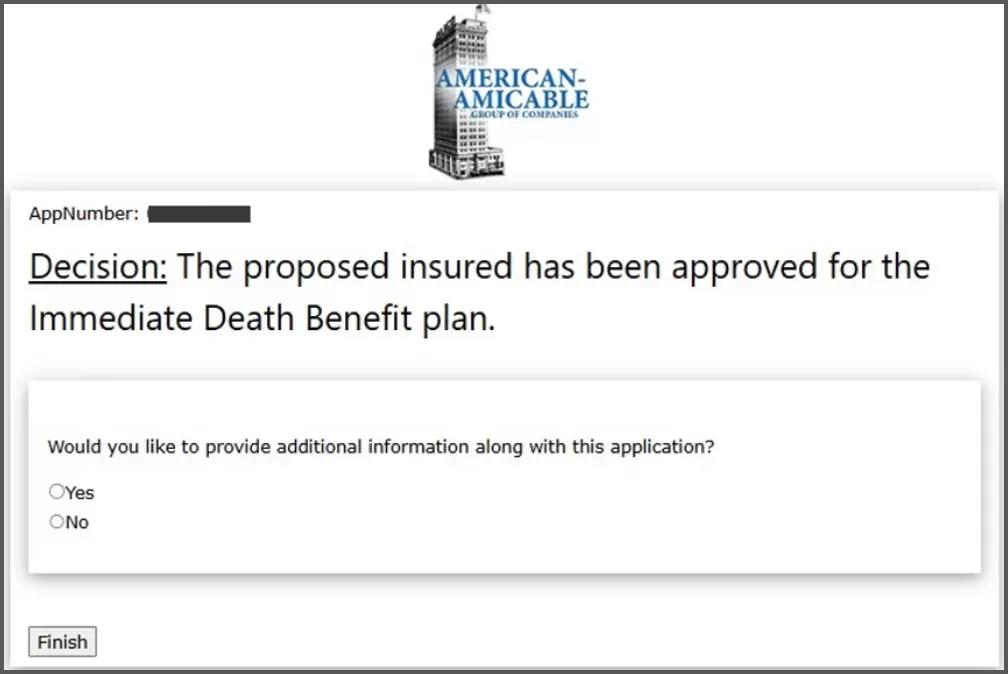
You will see where it says LOADING UNDERWRITING DECISION followed by the underwriting decision.
The underwriting decision will either be approved as applied for, declined or, if you selected to receive a different plan if applicable, it may approve the applicant for a different rating in which the applicant will need to accept.
Click the FINISH button.